A blue screen (BSOD) on Windows 11 is an intentional stop—the kernel hit a condition it cannot safely recover from. That sounds scary, but it is also actionable: stop codes point to drivers, RAM, disk, or power issues more often than “Windows is broken.” The win is collecting the right evidence once, then fixing the highest-probability cause instead of reinstalling on day one.
This guide is for gamers after a GPU driver update, laptop owners after sleep resume failures, and anyone who saw DRIVER_IRQL_NOT_LESS_OR_EQUAL or MEMORY_MANAGEMENT flash by. We cover minidump analysis basics, driver rollback, RAM and disk tests, and when to escalate to hardware replacement.
Before you begin
Prerequisites: Ability to boot Windows at least sometimes, or access WinRE/Safe Mode. Admin rights for dump settings.
Backups: BSODs can indicate disk failure—copy critical data before extended disk stress tests.
Risks: Blindly updating every driver at once obscures the culprit. Overvolting RAM profiles (XMP) causes instability—test with XMP off first.
Capture information the first time
On next boot, Windows may show “Stop code.” Write it down. Enable minidumps if missing:
- System Properties → Advanced → Startup and Recovery → Settings
- Write debugging information: Small memory dump (256 KB)
- Dumps path:
%SystemRoot%\Minidump
Why minidumps? They let you see which driver faulted without full kernel memory dumps filling the disk.
Read dumps with WhoCrashed or WinDbg Lite
Home-friendly: WhoCrashed (freeware) summarizes likely drivers. Advanced: Microsoft WinDbg on the .dmp file in C:\Windows\Minidump.
Why bother? “Updated something yesterday” becomes “faulting module nvlddmkm.sys.”
Roll back recent changes first
If BSODs started after an update or driver:
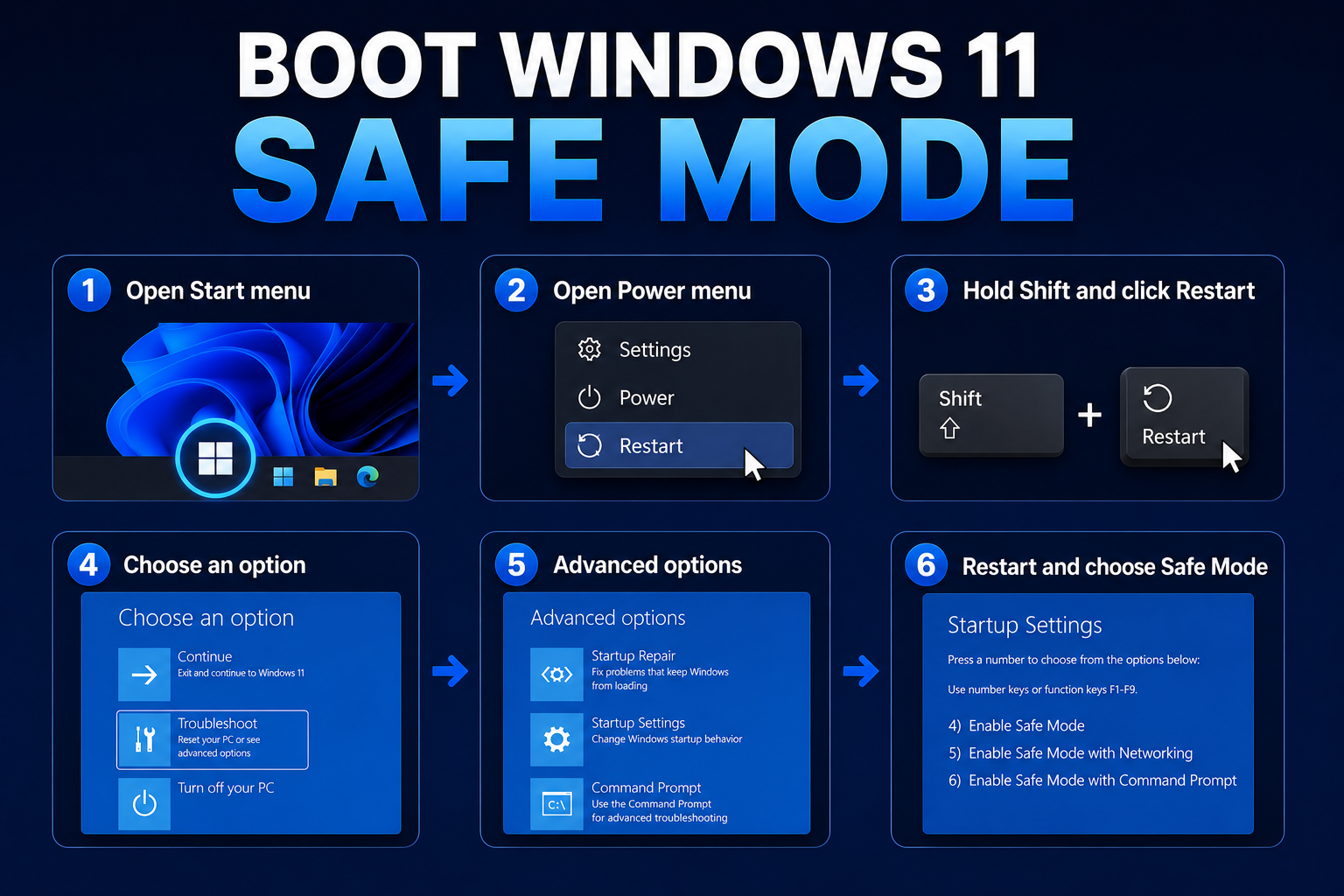
- Boot Safe Mode if needed.
- Device Manager → display/network/chipset device → Properties → Driver → Roll Back if available.
- Settings → Windows Update → Update history → Uninstall updates for the latest quality update (one at a time).
Why rollback first? Fastest proof whether new code caused the crash.
GPU and chipset drivers (top offender)
Install GPU drivers from AMD/NVIDIA/Intel directly; avoid random “driver booster” apps. Use DDU in Safe Mode only when switching GPU vendors or cleaning a bad install—follow a current guide exactly.
Why clean GPU swaps? Leftover vendor filter drivers cause IRQL crashes.
RAM: XMP and Windows Memory Diagnostic
UEFI: disable XMP/EXPO temporarily and test. In Windows, search Windows Memory Diagnostic → restart and test.
Why RAM? MEMORY_MANAGEMENT and random app crashes often trace to failing sticks or unstable profiles.
Disk health
Check SMART status with wmic diskdrive get status or vendor tools (CrystalDiskInfo). Run:
chkdsk C: /scan
Why disk? NTFS corruption and dying SSDs trigger SYSTEM_SERVICE_EXCEPTION and boot failures.
Power and thermals
Undervolted/overclocked CPUs, cheap PSUs, and laptop overheating cause WHEA_UNCORRECTABLE_ERROR. Monitor temps under load; reset BIOS defaults to test.
System file repair
Admin CMD:
DISM /Online /Cleanup-Image /RestoreHealth
sfc /scannow
Event Viewer correlation
Event Viewer → Windows Logs → System filters BugCheck events with stop parameters matching dumps. Pair with minidump analysis for a complete story.
Firmware and BIOS updates
OEM BIOS updates fix sleep/resume BSODs on laptops—apply from vendor utilities after reading release notes. Reset undervolting tools (ThrottleStop, etc.) to test stability.
When to replace hardware
Repeated MEMORY_MANAGEMENT after clean RAM tests, or SMART Caution on SSD, means plan replacement—software cannot fix failing NAND or DIMMs.
Clean boot after driver purge
After DDU or driver rollback, install only one driver package at a time and reboot between GPU and chipset updates—easier to identify which package regressed stability.
Windows Reliability Monitor
Search Reliability Monitor—graph correlates app crashes and Windows failures with timeline of installs; underrated companion to minidumps.
Laptop vendor bloat drivers
OEM audio and webcam drivers cause IRQL crashes after sleep—grab latest from vendor, not random OEM CD images. If crashes correlate with lid close, update BIOS and chipset package together.
Memory compression
Windows uses memory compression; high “Compressed” in Task Manager is not automatically bad—do not disable superfetch-like myths on Windows 11 without evidence.
Hyper-V and virtualization stacks
Third-party hypervisors (VirtualBox, VMware) and WSL2/Hyper-V compete for VT-x. Uninstall one stack or use documented coexistence settings before blaming Windows kernel.
PSU and GPU power cables
Desktop VIDEO_TDR_FAILURE often traces to loose 8-pin GPU power or failing PSU rails—reseat cables and test with power draw in mind, especially after GPU upgrades.
Kernel symbols and support channels
OEM support will ask for minidumps—zip %SystemRoot%\Minidump before sending. Custom PC builders should note exact RAM part numbers and XMP profile when opening RMA tickets.
Windows Insider builds
Insider previews crash more often—leave Program if you need stability for work; BSOD frequency on Dev channel is not representative of release quality.
Documenting reproduction steps
Note what you did in the ten minutes before a BSOD: driver install, game launch, sleep resume, USB device plug. Repro steps turn random crashes into fixable patterns. If crashes only happen in one game, verify game files and GPU driver branch (Studio vs Game Ready) before reinstalling Windows.
Backup before driver experiments
Export a System Restore point and bookmark GPU driver version numbers. Roll back is faster when you know the last known good .inf package version from NVIDIA/AMD release notes.
Summary workflow
Enable minidumps → reproduce once → read stop code/dump → roll back recent driver/update → RAM and disk tests → DISM/SFC → vendor GPU/BIOS updates → hardware swap if tests fail. Keep recovery USB and last good driver version noted.
Reader checklist (printable)
When a BSOD happens: photograph stop code, ensure minidumps enabled, boot Safe Mode, roll back last change, run RAM and disk tests, run DISM/SFC, update BIOS/GPU from vendor, escalate to hardware if tests fail. Do not install five tweaking utilities the same afternoon—you will not know which caused the next crash.
Store the last two minidump files before major driver experiments so you can compare faulting drivers across versions.
If WhoCrashed and Reliability Monitor disagree, trust the minidump module name over guesswork.
Laptop users should log sleep versus shutdown crashes separately—sleep bugs often trace to different drivers than gaming load crashes.
Pause overclock tools before blaming Windows kernel bugs.
Keep a dated log of BSOD stop codes and driver versions so patterns emerge across weeks.
Troubleshooting by stop code (quick map)
| Stop code | Common cause | First action |
|---|---|---|
| DRIVER_IRQL_NOT_LESS_OR_EQUAL | Network/GPU driver | Roll back recent driver |
| PAGE_FAULT_IN_NONPAGED_AREA | RAM/disk/driver | RAM test; check disk |
| SYSTEM_THREAD_EXCEPTION_NOT_HANDLED | Driver/module named in dump | Update or remove that driver |
| WHEA_UNCORRECTABLE_ERROR | CPU/RAM/power/OC | Reset BIOS defaults; check temps |
| CRITICAL_PROCESS_DIED | System file corruption | DISM + SFC; in-place repair |
Key takeaways
- Enable minidumps and read them—stop codes alone are hints, dumps name drivers.
- Roll back GPU/chipset drivers and recent Windows updates before exotic fixes.
- Test RAM without XMP and scan disks when corruption or memory codes appear.
- Use DISM/SFC for system file damage; Safe Mode for uninstalls during loops.
- Hardware power/thermals matter—especially on overclocked desktops.
FAQ
Are blue screens normal once? Rare ones after sleep driver updates can happen; repeated BSODs are not normal—investigate.
Will reset fix BSODs? If hardware is sound, yes; if RAM is failing, reset will not help long.
Can malware BSOD? Uncommon compared to drivers; still scan after stabilizing.