Windows Update is a background orchestration of downloads, component stores, drivers, and reboots—when it stalls at 0% or loops “Working on updates,” you are not alone. Stuck updates usually mean a blocked service, corrupted cache, full disk, or a pending driver conflict—not that you should ignore security patches forever.
This guide walks through safe, ordered fixes from simple waits to clearing the SoftwareDistribution cache, DISM repair, and recovery options—without random registry edits that cause worse problems next Tuesday.
Before you begin
Prerequisites: Administrator account. Laptop plugged into power. Stable internet (ethernet preferred).
Backups: Updates rarely delete user files, but create a restore point before cache resets. Note BitLocker keys if forced restarts are needed.
Risks: Deleting the wrong folders outside the documented cache paths can break servicing. Do not delete C:\Windows\WinSxS manually.
Confirm it is actually stuck
Feature updates can sit at one percent for hours on slow disks. Note the time; if disk activity in Task Manager is zero for 2+ hours with no progress text change, treat as stuck.
Why wait first? SSD laptops on 100% disk may look frozen while committing files.
Free disk space and external storage
Ensure at least 10–20 GB free on C:. For “external storage required” messages, plug a USB drive (16 GB+) when prompted—Windows uses it as scratch space for feature updates.
Why space matters? Component staging expands massively during feature updates.
Run the Windows Update troubleshooter
Settings → System → Troubleshoot → Other troubleshooters → Windows Update.
Why official troubleshooter? Resets services and flags known policy blockers automatically.
Stop services and clear the download cache (classic fix)
Open Command Prompt as Administrator:
net stop wuauserv
net stop bits
net stop cryptSvc
ren C:\Windows\SoftwareDistribution SoftwareDistribution.old
ren C:\Windows\System32\catroot2 catroot2.old
net start wuauserv
net start bits
net start cryptSvc
Reboot, then Settings → Windows Update → Check for updates.
Why rename, not delete? Preserves a rollback path if something goes wrong; Windows recreates folders fresh.
Repair the component store with DISM and SFC
Admin CMD or PowerShell:
DISM /Online /Cleanup-Image /RestoreHealth
sfc /scannow
Reboot and retry updates.
Why DISM before SFC? SFC pulls good files from the component store; DISM fixes the store when corrupted.
Check for policy or third-party blockers
Ask: Is this a work PC? VPN, corporate WSUS, or “update blockers” in AV suites can stall checks. Temporarily pause third-party AV updates—not Defender—and retry.
Driver-provoked failures
If a specific cumulative update fails repeatedly, search the KB number with your hardware (e.g., audio driver). Install OEM driver updates or defer optional driver updates in Advanced options while installing critical security patches.
Feature update via ISO (in-place upgrade repair)
Download Windows 11 ISO, mount, run setup.exe from Windows, choose Keep personal files and apps. This refreshes system files while preserving data—heavyweight but effective.
Why in-place? Fixes broken servicing stacks without full wipe.
Reset Windows Update components (scripted alternative)
Microsoft’s support articles sometimes recommend a bundled reset script; the manual net stop / rename sequence in this guide is the same idea. After reset, leave the PC on Ethernet, pause third-party VPNs, and install quality updates before feature upgrades.
Feature vs quality updates
Quality updates (monthly security) should install first. Feature updates (23H2 → 24H2) are larger and more failure-prone on tight disks—free space and wired networking reduce risk.
Logging for stubborn cases
Get-WindowsUpdateLog
Produces C:\Windows\WindowsUpdate.log readable in Notepad—search for error codes to match Microsoft KB articles instead of guessing.
Battery and metered connections
Laptops on metered Wi-Fi may pause large downloads. Settings → Network & Internet → Wi-Fi → Manage known networks → disable metered temporarily for update night.
Corporate WSUS/SCCM
Work PCs may show “up to date” while IT approves patches—contact helpdesk instead of cache nuking on domain machines.
Pause updates strategically
Settings allows pausing updates one week at a time—use when you need bandwidth for demos, not as a permanent security strategy. Resume and clear backlog promptly.
Servicing stack updates
Some months ship “servicing stack” prerequisites—install these first when offered separately in Update history; skipping order can block later cumulative updates.
Delivery Optimization bandwidth
Settings → Windows Update → Advanced options → Delivery Optimization → limit bandwidth or disable uploads to peers if your connection saturates during downloads—does not block updates, only sharing.
Manual CAB/MSU installs (last resort)
For specific stuck KBs, Microsoft catalog hosts .msu packages—install by double-click only when you know the exact KB failing; wrong package worsens mismatch.
Third-party patch tools
Avoid unofficial “Windows Update fixers” downloading EXEs from forums—malware disguises as update helpers. Stick to Microsoft troubleshooter, DISM, and documented cache steps.
Long-term servicing
LTSC/IoT editions have different update cadence—business readers on LTSC should follow LTSC documentation, not consumer 24H2 guides.
Storage on small tablets
32–64 GB eMMC devices need USB storage for feature updates routinely—plan a permanent micro-USB drive for update season or avoid feature upgrades until storage is expanded.
Post-update driver reconciliation
After a big feature update, open Optional updates and install offered drivers one batch, reboot, then install apps—reduces “app works but driver mismatch” support calls.
Summary workflow
Free space → troubleshooter → stop services/cache rename → DISM/SFC → reboot → optional in-place repair ISO → avoid random registry hacks.
Reader checklist (printable)
Free 20+ GB, plug in laptop, ethernet if possible, run troubleshooter, cache rename procedure, DISM/SFC, reboot, repeat. Use in-place ISO repair before abandoning Windows. Never delete WinSxS manually.
If you use disk cloning tools, ensure the cloned drive has a unique disk signature—clone mistakes can break servicing and updates until reinstalled. Laptops on battery may throttle downloads; plug in before overnight update sessions. Note the KB number that fails—searching KB500xxxx fail install often surfaces Microsoft-confirmed bugs and workaround timelines instead of random forum fixes.
After success, delete SoftwareDistribution.old only when Updates report fully caught up.
Surface devices sometimes need firmware updates before Windows version jumps—check vendor firmware before blaming Windows Update alone.
Retry updates on ethernet after Wi-Fi failures at ninety-nine percent.
Note the failing KB in Settings history before searching Microsoft support forums for known regressions, workaround timelines, and official workarounds. Screenshot the error code dialog for support tickets.
Troubleshooting
| Scenario | Action |
|---|---|
| Error 0x80070002 | Cache reset + DISM |
| Error 0x800f0922 | Free space; disable VPN; check WinRE partition space |
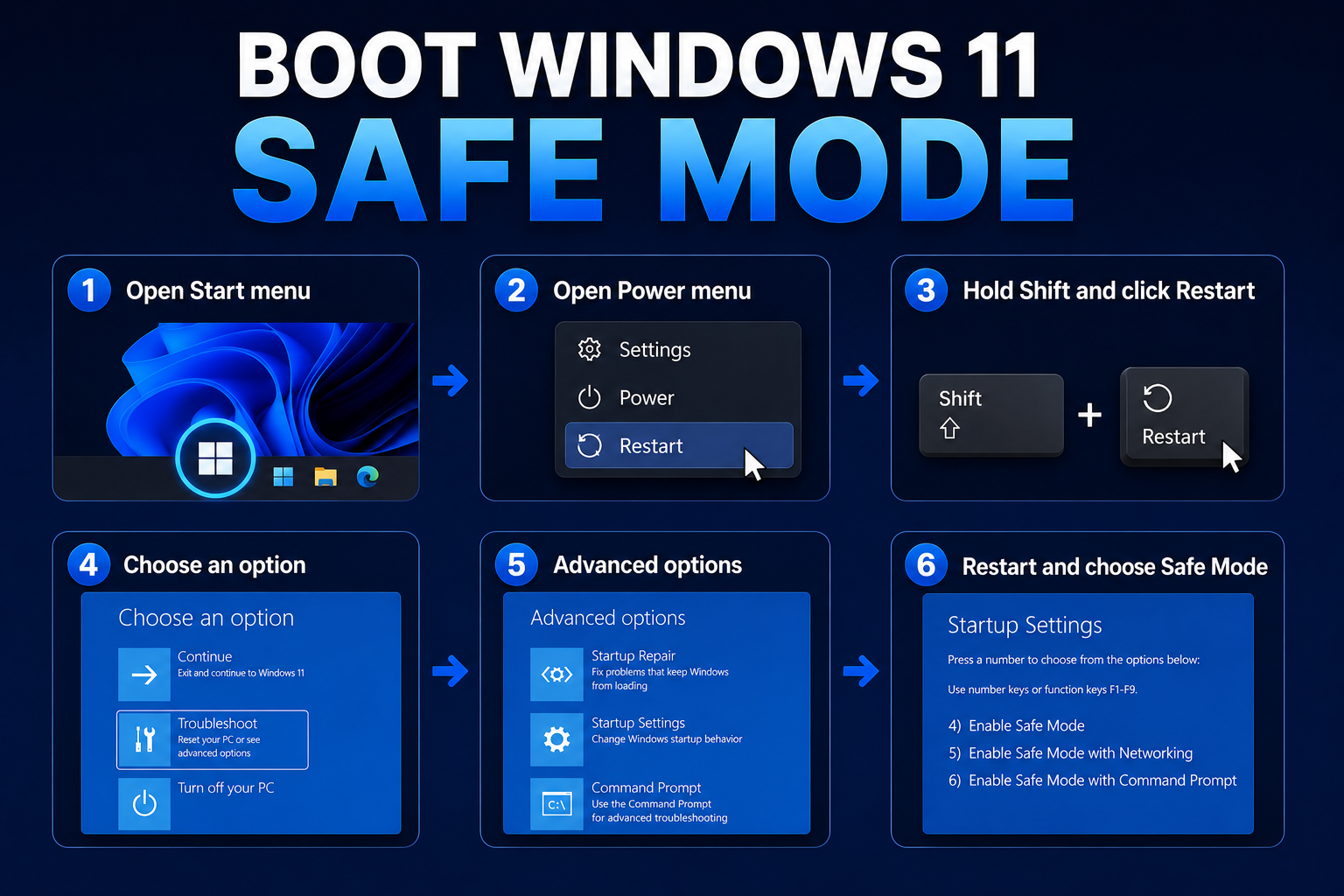
| Reboot loop | Boot Safe Mode; uninstall last quality update if offered |
| Stuck “Undoing changes” | Let it finish once; then DISM + cache reset |
| Hours at one % | Check disk activity; if zero, cache reset |
Key takeaways
- Verify disk space and power before aggressive fixes.
- Use the built-in troubleshooter, then controlled SoftwareDistribution cache reset.
- DISM + SFC repair the files Windows Update depends on.
- In-place upgrade via ISO is the big hammer that often succeeds.
- Avoid deleting WinSxS or random system folders for “space.”
FAQ
How long should I wait? Multi-hour waits on feature updates with active disk are normal; zero activity for hours is not.
Will cache reset delete my files? No—only redownloads update payloads.
Can I skip an update? Pause updates briefly in Settings, but install security patches monthly.