Safe Mode boots Windows with a minimal driver and service set—your first move when a blue screen loop happens, a bad driver sneaks in, or malware blocks normal tools. Windows 11 hides Safe Mode behind recovery menus more than older versions, but the concept is unchanged: narrow the problem space until the system can breathe.
This article is for anyone who cannot reach the desktop reliably, needs to uninstall a bad driver, or must run antivirus offline. We cover every practical entry path—Settings recovery, Shift+Restart, failed boot automatic recovery, and msconfig pitfalls.
Before you begin
Prerequisites: If possible, know your BitLocker recovery key before forced restarts. Have installation media USB ready if boot loops completely.
Backups: Safe Mode is for repair; if you can access files, copy critical data before aggressive uninstalls.
Risks: Choosing Safe Mode with Command Prompt only limits GUI fixes. Forgetting to exit System Configuration → Boot → Safe boot causes surprise safe boots every restart.
When to use which Safe Mode flavor
- Safe Mode: Basic, networking off—best for driver issues.
- Safe Mode with Networking: Internet available—use for cloud AV scans or downloading drivers.
- Safe Mode with Command Prompt: Advanced recovery commands—skip unless you know you need CMD-first.
Why networking optional? Some malware and bad drivers load via network stacks; basic Safe Mode avoids that.
Method 1: Settings (easiest if desktop works)
Settings → System → Recovery → Advanced startup → Restart now.
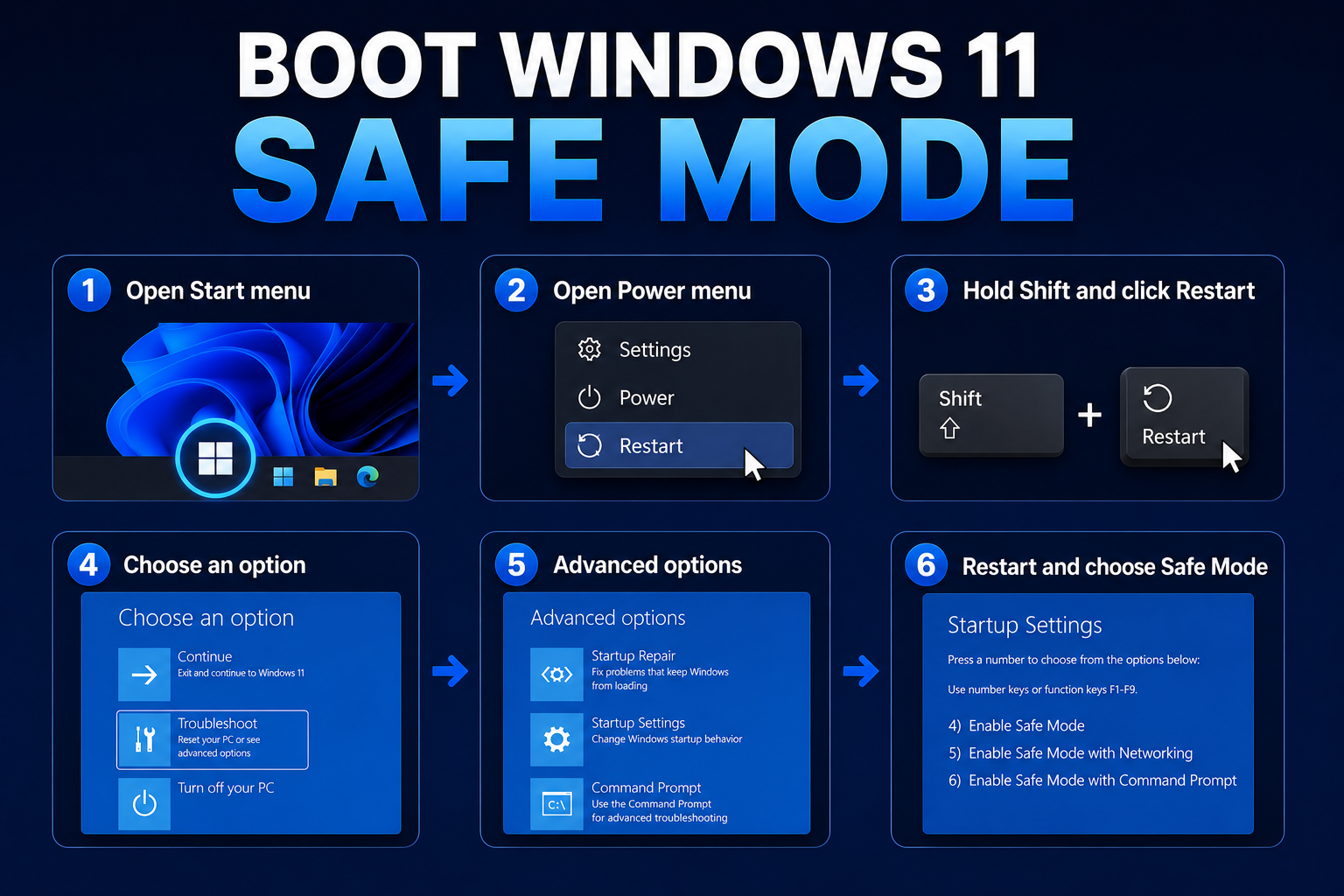
After reboot: Troubleshoot → Advanced options → Startup Settings → Restart → press 4 for Safe Mode or 5 for Networking.
Why Advanced startup? Unified recovery OS environment (WinRE) works even when boot files are stressed.
Method 2: Shift + Restart
Click Start → Power, hold Shift, click Restart. Same Troubleshoot path as above.
Why Shift? Skips needing to open Settings when the desktop is slow but alive.
Method 3: Failed boot automatic recovery
Power on, when Windows starts loading, hold power to hard shut down; repeat 2–3 times until Preparing Automatic Repair appears. Open Advanced options → Startup Settings.
Why interrupt boot? Triggers WinRE when you cannot open Settings—use sparingly on SSDs.
Method 4: msconfig (use carefully)
Win + R → msconfig → Boot tab → check Safe boot → Minimal → OK → Restart.
After repairs, undo this or you will boot Safe Mode forever:
msconfig → Boot → uncheck Safe boot
Why dangerous? Easy to forget; prefer Shift+Restart when possible.
What to do inside Safe Mode
- Uninstall recent apps/drivers — Settings → Apps; Device Manager → uninstall device with driver delete if rolling back GPU/chipset experiments.
- Run antivirus scan — Full scan with Defender or your tool.
- System Restore — Control Panel → Recovery → Open System Restore if a restore point predates the issue.
- Run command repairs (admin CMD):
sfc /scannow
DISM /Online /Cleanup-Image /RestoreHealth
Why uninstall in Safe Mode? Malware and broken filter drivers often cannot load, so removal succeeds.
Exit Safe Mode normally
Restart without Safe boot checked in msconfig. If stuck, repeat Startup Settings and choose Start Windows Normally (option 1) after another Advanced startup cycle.
BitLocker and recovery keys
If BitLocker protects the system drive, Safe Mode still requires unlock—but forced shutdown recovery tricks may prompt for the 48-digit recovery key. Store it in your Microsoft account, print a copy, or save to a USB you keep separately from the PC.
When Safe Mode is not enough
If Safe Mode also blue screens, use WinRE Startup Repair, then System Restore, then installation media Repair your computer. Hardware faults (RAM, SSD) survive Safe Mode—do not treat Safe Mode failure as proof Windows is corrupt alone.
Safe Mode with networking for cloud tools
If malware removal requires cloud definition updates, networking mode is worth the risk for one session—then return to full boot and rerun scans.
Creating a recovery USB
Microsoft Media Creation Tool USB gives repair options even when internal WinRE partition is damaged—keep one USB in your desk drawer.
Capturing logs before reboot loops
If you can reach Safe Mode once, copy C:\Windows\Minidump\*.dmp to USB before running repairs—support forums need dumps even if Windows later boots.
Offline Defender scan
Windows Security → Virus & threat protection → scan options → Microsoft Defender Offline scan schedules reboot scan outside normal boot—excellent companion to Safe Mode malware removal.
Command-line boot options
shutdown /r /o from an elevated CMD triggers Advanced startup after reboot—useful when the GUI is broken but you still have a command shell.
Recovery drive creation
Settings → System → Recovery → Create a recovery drive—adds WinRE tools on USB separate from installation media.
Mac Boot Camp and dual-boot
Dual-boot systems share disks—Safe Mode on Windows does not affect Linux partitions, but avoid partition editors from Safe Mode unless you know chkdsk implications on shared NTFS.
Remote desktop
You cannot RDP into Safe Mode in typical configurations—use local console or iDRAC for servers.
Accessibility in Safe Mode
High contrast and narrator still work in Safe Mode for many builds—useful when guiding users over the phone through driver removal.
UEFI fast startup caveat
Fast Startup (hybrid shutdown) can cause confusing boot behavior after dirty shutdowns. Disable temporarily in Power Options → Choose what power buttons do → uncheck Turn on fast startup while diagnosing boot loops.
Summary workflow
Settings Recovery or Shift+Restart → Troubleshoot → Startup Settings → Safe Mode → fix drivers/apps → sfc/DISM → uncheck msconfig Safe boot → normal reboot.
Reader checklist (printable)
Practice Shift+Restart path once while PC is healthy. Store BitLocker recovery key. Use Safe Mode to uninstall bad drivers, not as daily mode. Clear msconfig Safe boot when done.
If Startup Settings never appears, create USB install media and use Repair your computer → Troubleshoot—the same WinRE environment as Shift+Restart. Write your BitLocker recovery key on paper before practicing hard-shutdown recovery tricks—without it, a forced repair boot can become a lockout instead of a fix.
Safe Mode is free support insurance—practice entry before you need it under stress.
Write Startup Settings steps on a sticky note on the PC—future you will thank present you at 2 a.m. during a driver panic.
Carry a printed BitLocker key when traveling with encrypted laptops.
Offline Defender scans pair well with Safe Mode when malware blocks normal boots on infected PCs.
Troubleshooting
| Problem | Solution |
|---|---|
| Safe Mode loops | Clear Safe boot in msconfig via normal CMD if possible |
| BitLocker asks key | Enter recovery key from Microsoft account printout |
| Black screen in Safe Mode | Possible display driver—try basic mode uninstall in Device Manager |
| No internet in networking mode | Check airplane mode hardware switch; Ethernet cable test |
| Can’t open Settings | Use Shift+Restart or installation USB → Repair |
Key takeaways
- Use WinRE (Troubleshoot → Startup Settings) as the primary Windows 11 path.
- Prefer Safe Mode without networking for driver troubleshooting.
- Avoid leaving msconfig Safe boot enabled after fixes.
- Uninstall recent drivers/apps and run
sfc/DISM while in Safe Mode. - Keep BitLocker recovery keys accessible before forced shutdown tricks.
FAQ
Does Safe Mode delete files? No—it only changes boot drivers/services.
Can I install updates in Safe Mode? Limited—use normal mode for Windows Update when stable.
Safe Mode still crashes? Hardware or deep system damage—try WinRE startup repair or clean install after backup.