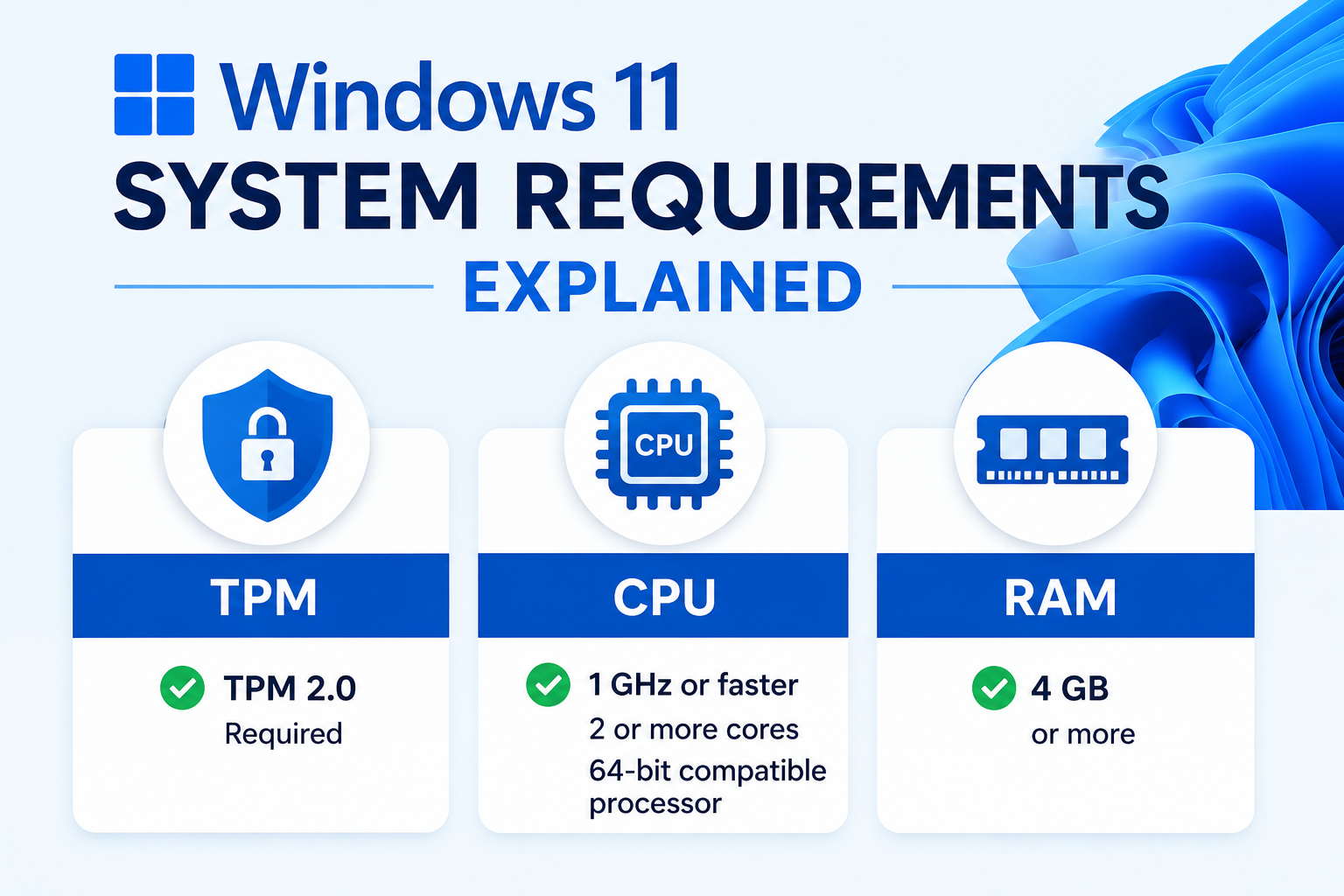
Windows 11’s system requirements were controversial at launch: TPM 2.0, UEFI, and Secure Boot pushed a lot of otherwise-capable PCs into “unsupported” territory. Whether you agree with Microsoft’s line or not, those checks exist for a reason—security baselines, predictable firmware, and a support matrix that does not explode. Understanding the requirements lets you decide between an official upgrade, a clean install with compliance, or staying on Windows 10 a bit longer.
This article is for anyone answering “Can this laptop run Windows 11?” without relying on rumor. We will translate Microsoft’s specs into practical checks, explain what TPM and Secure Boot actually do, and cover edge cases like VMs, custom builds, and older but fast hardware.
Before you begin
Prerequisites: Administrator access on the PC you are checking. For firmware changes, ability to reboot into BIOS/UEFI.
Risks: Forcing Windows 11 onto hardware that fails checks may work via workarounds but can mean no security updates, broken installs after feature updates, or unsupported states in enterprise environments. Document your decision if this is a work machine.
Backups: Requirement checks are read-only, but if you proceed to upgrade, back up first.
Official minimum requirements (simplified)
Microsoft’s published floor for Windows 11 generally includes:
- Processor: 1 GHz, 2+ cores, 64-bit, on Microsoft’s approved CPU list (varies by vendor and generation)
- RAM: 4 GB minimum (8 GB strongly recommended for daily use)
- Storage: 64 GB or larger system drive
- Firmware: UEFI, Secure Boot capable
- TPM: Version 2.0
- Graphics: DirectX 12 compatible with WDDM 2.0 driver
- Display: 720p, 9" or larger (mostly relevant for tablets)
Why a CPU list? Microsoft tests specific generations for driver and firmware combos. CPUs not on the list may run Windows 11 fine but fail the PC Health Check app.
Run Microsoft’s PC Health Check
Download PC Health Check from Microsoft (or use Settings → Windows Update → Check for Windows 11 eligibility on some builds).
Why use it? It aggregates TPM, Secure Boot, CPU model, and RAM into a single pass/fail. Failures usually name the blocking item.
If it says TPM is missing, do not assume the chip is absent—TPM is often disabled in BIOS.
Verify TPM 2.0 in Windows
Open Run (Win + R), type:
tpm.msc
Status should read The TPM is ready for use and Specification Version 2.0.
Why TPM matters: Windows 11 uses TPM-backed protections for features like Windows Hello, BitLocker defaults on many devices, and measured boot. TPM 1.2 is not sufficient for the official requirement.
Check Secure Boot and UEFI
In Windows, open System Information (msinfo32). Look for:
- BIOS Mode: UEFI (not Legacy)
- Secure Boot State: On
Why Secure Boot? It ensures only signed bootloaders run early in startup, reducing bootloader malware risk. Windows 11’s installer expects it on compliant paths.
CPU compatibility without guesswork
Search Microsoft’s Windows 11 supported Intel/AMD/Qualcomm processors list for your exact model. Laptop model numbers hide CPU SKUs—find the full chip name in Task Manager → Performance → CPU or System Information.
Why false positives happen: A Core i7 from an unsupported generation is still fast; Microsoft’s gate is policy and test coverage, not raw speed.
Storage and RAM in the real world
64 GB is a legal minimum, not a comfort zone. Windows 11 plus updates and one browser can consume tens of gigabytes quickly.
Practical guidance:
- 128 GB SSD: Tight; plan aggressive storage hygiene
- 256 GB+: Reasonable for office use
- 8 GB RAM: Minimum for multitasking; 16 GB for dev VMs, many tabs, or gaming
Virtual machines and dual boot
Hyper-V and VMware can present virtual TPMs on Windows 11 hosts. Enable TPM in VM settings before install.
Why: Setup inside a VM without vTPM fails the same checks as bare metal.
Unsupported but capable hardware
Some users bypass checks via registry or modified ISO. Risks include:
- No guarantee of future cumulative updates
- Possible “unsupported” watermark
- IT policy violations
Why mention this? Honesty beats surprise six months later when a feature update refuses to apply.
RAM and storage: planning headroom
Four gigabytes of RAM satisfies the installer and little else once Chrome, Teams, or a game launcher joins the party. Eight gigabytes is the realistic minimum for office work with a handful of tabs. Sixteen gigabytes future-proofs development, virtual machines, and gaming where texture streaming and Discord compete for memory. If Task Manager shows constant pressure above eighty-five percent with only routine apps open, adding RAM often beats chasing registry “optimizations.”
Storage deserves the same honesty. Sixty-four gigabytes is a legal floor, not a lifestyle choice. Windows 11, cumulative updates, restore points, and hibernation files consume tens of gigabytes before you install Office or Steam. A 128 GB boot SSD works only with disciplined cleanup and cloud offload. Two hundred fifty-six gigabytes is the practical starting point for a single-drive laptop; pair a 500 GB or 1 TB NVMe boot drive with a secondary data disk on desktops when budgets allow.
Laptops vs custom desktops
OEM laptops sometimes hide TPM or Secure Boot behind branded BIOS menus (“Security Processor,” “Firmware TPM,” “PTT”). Desktop motherboards may ship with TPM headers unpopulated on older boards—check whether your board has a TPM 2.0 module slot or firmware TPM in BIOS. Custom builders should enable fTPM (AMD) or PTT (Intel) before first install to avoid post-build surprises.
Checklist before you buy or upgrade
Work through this sequence on any candidate machine:
- Confirm CPU model against Microsoft’s supported list for your exact SKU.
- Open
tpm.mscand verify TPM 2.0 ready. - Run
msinfo32and confirm UEFI + Secure Boot On. - Validate at least 8 GB RAM and 128 GB free storage (more is better).
- Run PC Health Check after BIOS changes.
Document screenshots if you are buying used hardware—sellers sometimes reset BIOS to incompatible defaults to “make it boot faster,” which later blocks Windows 11 setup.
Virtualization for developers
If you plan Hyper-V, WSL2, or Android emulators, enable hardware virtualization in BIOS even after passing Windows 11 checks. Some motherboards disable VT-x by default for “compatibility.” Windows 11 itself does not require Hyper-V, but dev workflows do.
Reporting results to family or IT
When helping someone remotely, have them send photos of msinfo32 System Summary and tpm.msc status—not vague “it says no.” CPU-Z or Task Manager CPU string helps when the PC Health Check app is outdated.
Troubleshooting
| Check fails | Common fix |
|---|---|
| TPM not found | Enable Intel PTT, AMD fTPM, or Security Device / TPM in BIOS |
| Secure Boot off | Enable Secure Boot; ensure UEFI mode (disable CSM/Legacy) |
| CPU unsupported | Stay on Windows 10, replace hardware, or accept unsupported install risks |
| Disk too small | Upgrade drive or free space; clean install to larger SSD |
| PC Health Check bug | Update the app; verify firmware settings manually |
Key takeaways
- Windows 11 officially requires UEFI, Secure Boot, TPM 2.0, and a supported 64-bit CPU.
- Many “incompatible” PCs only need TPM or Secure Boot enabled in BIOS.
- 4 GB / 64 GB is a floor; 8–16 GB RAM and 256 GB storage are realistic targets.
- Use
tpm.msc,msinfo32, and Microsoft’s CPU lists before buying upgrades. - Bypassing requirements is possible but trades long-term support predictability.
FAQ
Can I upgrade from Windows 10 on unsupported hardware? Microsoft allowed some exceptions early; policies evolve—check current Microsoft guidance for your scenario.
Does TPM slow gaming? TPM 2.0 overhead is negligible for normal use.
Will Windows 10 stop working? Windows 10 has its own end-of-support timeline; plan migrations before security updates end.