Arch Linux attracts developers and homelab enthusiasts who want a rolling-release system assembled from first principles: you choose the kernel, bootloader, desktop environment, and every service that runs. There is no graphical installer in the official ISO workflow—only a comprehensive wiki and a chroot-based process that teaches partition layout, fstab, initramfs, and networking in one sitting.
This guide is not the Arch Wiki duplicated verbatim. It is a structured walkthrough for experienced Linux users installing Arch on UEFI hardware for a systemd-boot or GRUB setup with btrfs or ext4 root, NetworkManager, and a minimal path to a daily-driver GNOME or Hyprland desktop—plus troubleshooting for the failures common on first Arch installs.
Before you begin
Arch is a poor first Linux distro. Comfort with bash, Wi-Fi firmware quirks, and reading logs is assumed. If you need guaranteed sleep/suspend on a laptop within an hour, install Fedora or Ubuntu first.
Read current wiki pages: Installation guide, General recommendations, and your GPU driver section change—verify against wiki.archlinux.org on install day.
Prepare:
- Arch ISO on USB (use
ddor Ventoy). - Wired Ethernet cable if Wi-Fi chip is unknown.
- Hostname, timezone, locale, and disk layout plan.
- Separate
/homeor btrfs subvolumes if you want snapshot upgrades later.
Backup all data on target disk. Partitioning destroys existing contents.
Boot the live environment
UEFI boot the USB. At prompt:
ping -c 3 archlinux.org   # verify network
timedatectl set-ntp true
wifi-menu                 # if needed; or iwctl on newer images
lsblk                     # identify target disk
Partition disks (UEFI example)
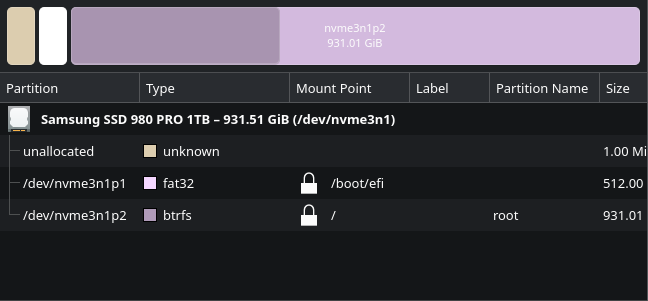
For /dev/nvme0n1:
| Partition | Size | Type | Mount |
|---|---|---|---|
| nvme0n1p1 | 1 GiB | EFI (EF00) | /boot |
| nvme0n1p2 | rest | Linux root (8300) | / |
Using fdisk or cfdisk:
cfdisk /dev/nvme0n1
mkfs.fat -F32 /dev/nvme0n1p1
mkfs.ext4 /dev/nvme0n1p2    # or mkfs.btrfs for advanced setups
btrfs subvolume sketch (optional):
mkfs.btrfs /dev/nvme0n1p2
mount /dev/nvme0n1p2 /mnt
btrfs subvolume create /mnt/@
btrfs subvolume create /mnt/@home
umount /mnt
mount -o subvol=@ /dev/nvme0n1p2 /mnt
mkdir /mnt/home
mount -o subvol=@home /dev/nvme0n1p2 /mnt/home
Install base system
mount /dev/nvme0n1p1 /mnt/boot   # after creating /mnt/boot
pacstrap /mnt base linux linux-firmware nano vim git networkmanager sudo
genfstab -U /mnt >> /mnt/etc/fstab
arch-chroot /mnt
Inside chroot:
ln -sf /usr/share/zoneinfo/America/New_York /etc/localtime
hwclock --systohc
echo "en_US.UTF-8 UTF-8" >> /etc/locale.gen
locale-gen
echo "LANG=en_US.UTF-8" > /etc/locale.conf
echo "archbox" > /etc/hostname
Configure hosts file and root password:
passwd root
useradd -m -G wheel -s /bin/bash youruser
passwd youruser
EDITOR=nano visudo   # uncomment %wheel ALL=(ALL) ALL
Bootloader
systemd-boot (UEFI, simple):
bootctl install
nano /boot/loader/entries/arch.conf
Example entry:
title Arch Linux
linux /vmlinuz-linux
initrd /initramfs-linux.img
options root=UUID=YOUR-UUID rw
Find UUID with blkid.
GRUB (dual-boot friendly):
pacstrap add grub efibootmgr os-prober
grub-install --target=x86_64-efi --efi-directory=/boot --bootloader-id=GRUB
grub-mkconfig -o /boot/grub/grub.cfg
Enable NetworkManager and exit chroot
systemctl enable NetworkManager
exit
umount -R /mnt
reboot
Remove USB when prompted.
Post-install essentials
Login as user; connect network:
sudo pacman -Syu
sudo pacman -S plasma-meta kde-applications  # example DE stack
# or minimal: sudo pacman -S gnome gnome-extra gdm
sudo systemctl enable gdm   # or sddm for KDE
Install microcode:
sudo pacman -S intel-ucode    # Intel
sudo pacman -S amd-ucode      # AMD
Regenerate initramfs/bootloader entries after microcode install per wiki.
AUR helper (optional, community standard):
git clone https://aur.archlinux.org/yay.git
cd yay && makepkg -si
Use AUR sparingly—inspect PKGBUILDs.
Graphics drivers:
- NVIDIA:
nvidia-dkmsplus kernel headers; expect module rebuilds on kernel updates. - AMD/Intel: usually mesa in base.
Homelab-oriented Arch notes
Arch excels as a rolling desktop driving Terraform/Ansible against stable server distros. For production servers, many teams prefer Arch only when they accept rolling risk—or use EndeavourOS/Alma variants for slightly guided experiences.
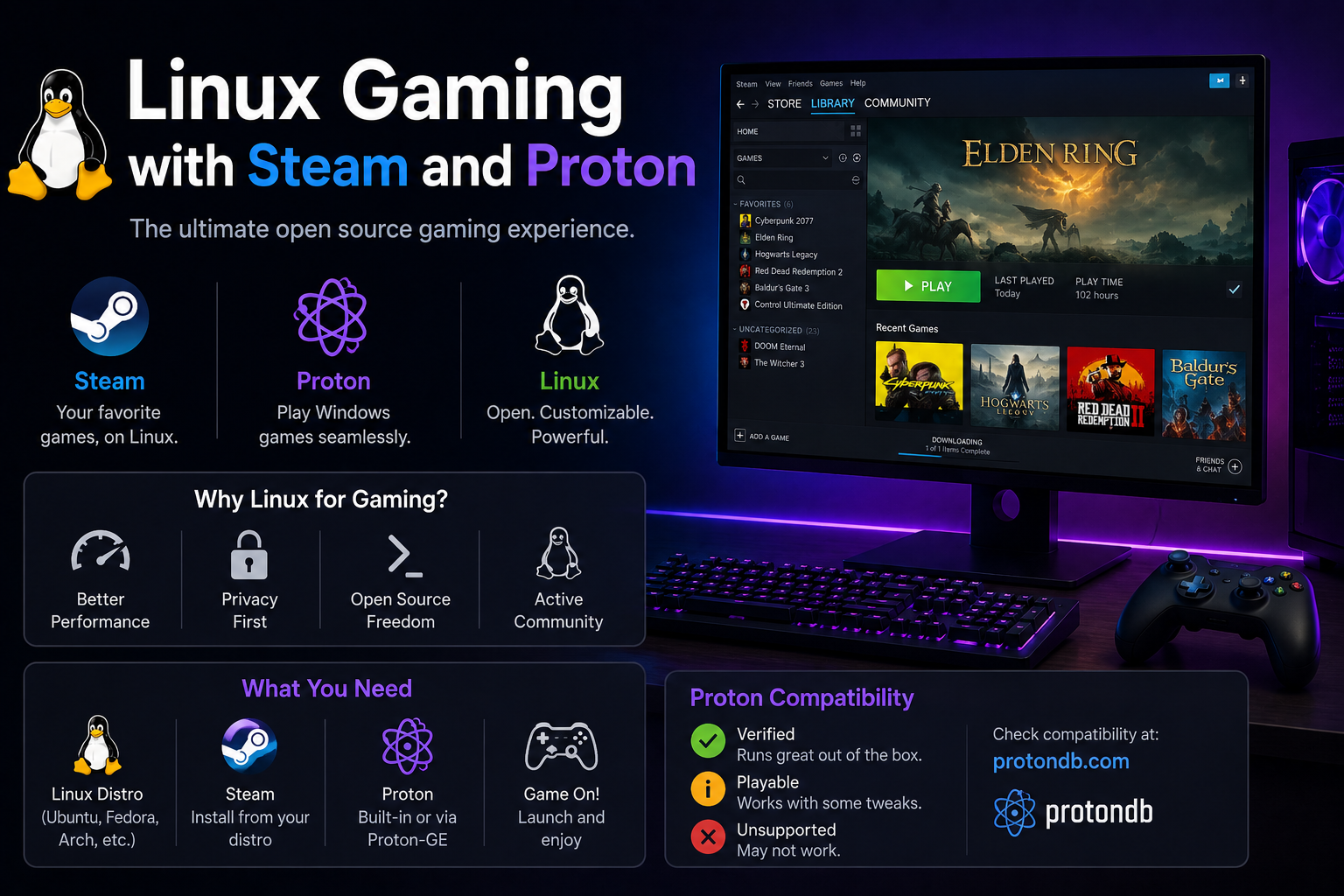
Enable multilib for Steam:
sudo pacman -S steam
Snapshots with btrfs + snapper or timeshift are popular—configure before experimenting.
Ongoing maintenance ritual
Arch punishes partial upgrades. Weekly or biweekly maintenance:
sudo pacman -Syu
sudo pacman -Sc    # clear cache periodically
paccache -rk 3     # keep last 3 kernel versions if installed
Read arch-dev-public before major glibc or Python transitions.
When kernels update, verify boot entries and NVIDIA DKMS rebuild success before rebooting production-adjacent workstations.
Desktop environment selection guidance
| DE | Notes |
|---|---|
| GNOME | Best Wayland defaults; minimal config |
| KDE Plasma | Customizable; excellent NVIDIA Wayland recently |
| Hyprland | Tiling Wayland compositor; manual setup |
| i3/sway | Keyboard-driven tiling; minimal resources |
Install one DE fully before adding another—conflicting display managers (gdm vs sddm) cause login loops.
Homelab bridge: Arch desktop, stable servers
Common pattern: Arch or Fedora on daily driver laptop; Debian/Ubuntu LTS or Proxmox on always-on nodes. Skills transfer—systemctl, ssh, containers—while avoiding rolling-risk on NAS and DNS servers.
Document Arch-specific tweaks (AUR packages, kernel parameters) separately from Ansible playbooks targeting Ubuntu servers to prevent accidental cross-application.
Common first-boot pitfalls
Forgot microcode: Random instability or poor power management—install intel-ucode or amd-ucode before heavy workloads.
NetworkManager vs systemd-networkd: Pick one—Arch wiki defaults to NetworkManager for desktops; do not enable conflicting services.
Audio on PipeWire: Install pipewire-pulse and wireplumber; legacy PulseAudio-only guides confuse newcomers.
Font rendering: Install noto-fonts and noto-fonts-emoji early for readable browsers and terminals.
sudo pacman -S noto-fonts noto-fonts-emoji ttf-jetbrains-mono-nerd
fc-cache -fv
pacman tips for newcomers
pacman -Qs keyword      # search installed
pacman -Ss keyword      # search repos
pacman -Qi package      # info
pacman -Ql package | head   # files owned
reflector --country US --latest 10 --download-mirror --save /etc/pacman.d/mirrorlist
Use reflector or rate-mirrors monthly for faster downloads—Arch mirrors vary widely in speed.
Subscribe to the Arch news RSS feed before running -Syu—manual intervention is occasionally required for breaking changes.
Troubleshooting
Boot drops to emergency mode. Check /etc/fstab UUIDs; regenerate with genfstab -U from live ISO chroot.
No Wi-Fi in chroot/live. Use Ethernet; install firmware packages (linux-firmware, vendor-specific) in pacstrap list.
Black screen after NVIDIA driver. Ensure nvidia-dkms matches running kernel; rebuild initramfs; check wiki nomodeset temporary boot parameter.
Partial upgrade breaks system. Arch requires full system upgrades (pacman -Syu), never partial. Read arch-dev-public mailing list before glibc bumps.
Keyring errors. Run wiki "Arch Linux archive keyring" fix commands when ISO is stale.
Time skew dual-boot Windows. Enable hardware clock UTC: timedatectl set-local-rtc 0.
Key takeaways
- Arch install teaches partitioning, chroot, fstab, and bootloader mechanics—valuable even if you daily-drive Ubuntu.
- Follow the wiki on install day; rolling release means stale guides break.
- Install microcode, NetworkManager, and a display manager before chasing desktop polish.
- Plan NVIDIA/AUR carefully—DKMS modules need attention on every kernel update.
- Do not partial-upgrade; treat
-Syuas a maintenance ritual with reading time beforehand.
FAQ
Arch vs EndeavourOS?
EndeavourOS provides a guided Calamares installer and sane defaults while staying Arch-compatible—good if you want Arch packages without manual partitioning stress.
Is Arch stable enough for daily use?
Many developers use it daily; stability depends on your willingness to read alerts and fix occasional breakage.
Should homelab servers run Arch?
Possible, but Debian/Ubuntu LTS or RHEL derivatives reduce surprise reboots for always-on services.
How much time for first successful install?
Experienced Linux users: 1–3 hours including DE; beginners should budget learning weeks elsewhere first.