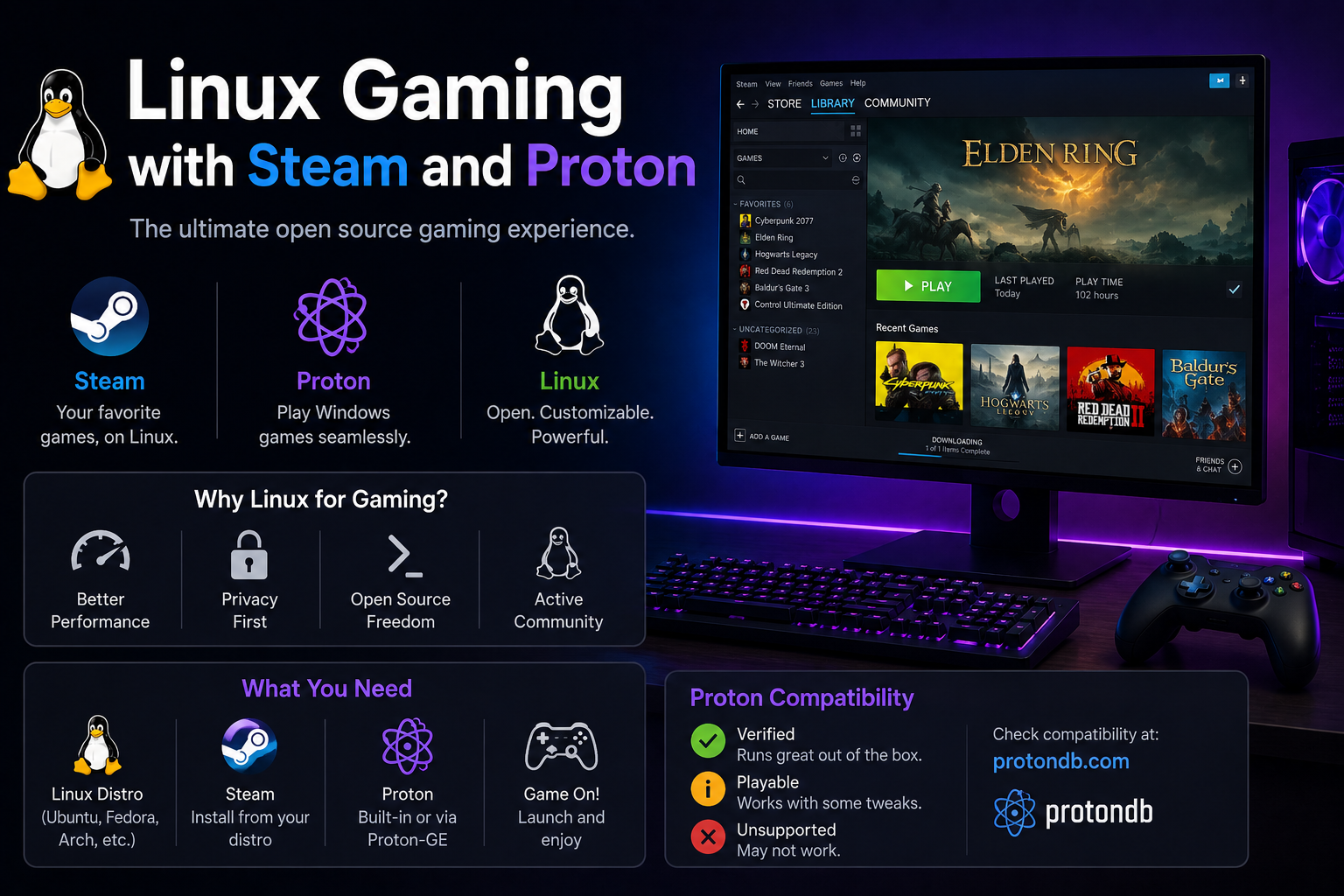
Linux gaming crossed the credibility threshold when Steam Deck shipped Proton—Valve's Wine-based compatibility layer—to millions of users. In 2026, a well-chosen distro, current GPU drivers, Steam's Proton settings, and community databases (ProtonDB, GamingOnLinux) turn many Windows-only Steam titles into native-feeling experiences. Anti-cheat gaps remain, but homelab builders and developers no longer need a separate Windows box for every gaming session.
This guide covers distro/driver baselines, Steam and Proton configuration, Lutris and Heroic for non-Steam stores, performance tuning, and troubleshooting DXGI errors, Proton version mismatches, and HDR/multi-monitor quirks.
Before you begin
Check ProtonDB for your must-play titles before abandoning Windows: protondb.com.
GPU vendor matters:
- AMD: Excellent open-source mesa drivers on all major distros.
- Intel Arc: Rapid driver maturation; stay on recent kernels.
- NVIDIA: Proprietary drivers required; choose distros with painless install (Pop!_OS, Ubuntu Additional Drivers, Fedora akmod-nvidia).
Install games on ext4/xfs/btrfs. NTFS/exFAT Steam libraries cause update failures and permission issues.
Disk space: Modern games exceed 100 GB each; plan terabyte-scale storage.
Baseline setup on Ubuntu/Pop!_OS
sudo apt update
sudo apt install -y steam-installer mesa-vulkan-drivers vulkan-tools gamemode
# Or install Steam via Flatpak from Flathub
vulkaninfo | head   # verify Vulkan
Enable Proton in Steam:
- Steam → Settings → Compatibility.
- Enable Steam Play for supported titles.
- Enable Steam Play for all other titles (testing).
- Select Proton Experimental or latest Proton 9.x for stubborn games.
Launch game → Properties → Compatibility → force specific Proton version if defaults fail.
Fedora gaming stack
sudo dnf install steam gamemode mangohud
# RPM Fusion required for NVIDIA:
sudo dnf install akmod-nvidia
sudo reboot
Use %gamemode launch option in Steam for CPU governor tweaks.
Performance tools
Gamemode (Feral Interactive):
Steam launch options:
gamemode %command%
MangoHud overlay:
mangohud %command%
Proton GE (GloriousEggroll) community builds add fixes faster than stable Proton—install via ProtonUp-Qt:
flatpak install flathub net.davidotek.pupgui2
Non-Steam games: Lutris and Heroic
Lutris manages GOG, Epic, Battle.net (limited), and custom Wine runners:
sudo apt install lutris # or Flatpak
Heroic Launcher for Epic/GOG with Wine/Proton backends—excellent for free weekly games.
EA App / Ubisoft: hit-or-miss on Linux; check Lutris scripts and recent reports before buying.
Controller, audio, and HDR
- Steam Input handles Xbox/PlayStation controllers for most titles.
- PipeWire is default on Fedora, Ubuntu, Pop—low-latency audio generally works; switch Steam audio to PipeWire if crackling persists.
- HDR on Linux gaming monitors is experimental—expect to disable HDR for stability.
Dual-boot and VFIO note
If Proton cannot run a title due to anti-cheat (e.g., some competitive shooters), dual-boot Windows or a VFIO GPU passthrough VM are the practical fallbacks—passthrough is advanced homelab territory.
Hardware-specific tuning
AMD FSR and frame generation: Some titles benefit from environment variables and Proton Experimental builds—track release notes monthly.
NVIDIA: Enable Allow Flipping in nvidia-settings for some Wayland compositors; disable compositor bypass cautiously when tearing appears.
Steam Deck Verified badge indicates Valve-tested Proton compatibility—good proxy for desktop Linux success though not identical hardware.
Storage performance: Install libraries on NVMe; symlink secondary HDD libraries only for cold storage games:
# Steam → Settings → Storage → add library folder
CPU governor: Gamemode requests performance governors; on laptops verify thermals with sensors during stress tests.
Launch options reference
Common Steam launch option patterns:
PROTON_LOG=1 %command%                    # debug log to home directory
DXVK_HUD=fps %command%                    # FPS overlay
PROTON_FORCE_LARGE_ADDRESS_AWARE=1 %command%
WINEDLLOVERRIDES="winemenubuilder.exe=d" %command%   # fix menu glitches
Use PROTON_LOG=1 sparingly—logs grow large quickly.
Streaming and capture
OBS Studio on Linux supports PipeWire screen capture on Wayland with xdg-desktop-portal—verify portal packages installed on Fedora (xdg-desktop-portal-gtk, xdg-desktop-portal-wlr depending on compositor).
NVENC works on NVIDIA with recent drivers for hardware encoding—reduces CPU load for homelab streamers.
Building a sustainable Linux gaming library
Curate your library intentionally:
- Check ProtonDB tier (Platinum/Gold) before purchase during Steam sales.
- Prefer native Linux titles when price and quality match—less compatibility risk long-term.
- Keep a Windows partition or VM list for "Tier F" anti-cheat games rather than fighting unwinnable battles.
- Export Steam library backups for large titles after lengthy downloads—re-downloading 150 GB hurts on metered connections.
ProtonDB community reports often mention specific Proton versions and launch flags—copy proven configs before inventing your own.
Steam Play compatibility tool per-game overrides survive client updates—document non-default choices in a personal wiki.
Controller and input advanced notes
Steam Input supports gyro, touchpads, and custom action sets—valuable for Steam Deck class devices used as homelab couch clients.
For non-Steam games via Lutris, map controllers in Lutris runner settings before tweaking Wine registry manually.
Audio and voice chat reliability
PipeWire default routing occasionally confuses Discord/Steam voice—if friends hear silence, verify input device in pavucontrol or wpctl status and set default source explicitly.
Bluetooth headsets add latency; wired or 2.4 GHz wireless dongles reduce dropouts during competitive sessions. Launch Proton games with PULSE_LATENCY_MSEC=60 only when crackling persists—document tweaks per title.
Track Proton Experimental release notes on GitHub—regression fixes land weekly during active Steam client cycles.
Consider Steam Linux Runtime containers (Soldier/Sniper) as isolation layer—most Proton builds depend on them; avoid deleting runtime components when pruning disk space.
Homelab streamers running OBS alongside games should cap Docker CPU limits during sessions—background docker stats spikes cause micro-stutter unrelated to Proton.
When buying new games, wishlist Linux-native titles during Steam sales—native builds fund continued porter work and reduce Proton maintenance burden over time.
Troubleshooting
Game crashes at launch. Try Proton Experimental, Proton GE, or older Proton LTS. Clear prefix: Steam → Properties → Installed Files → Verify; delete compatdata folder for that app ID as last resort.
"DXVK" or Vulkan errors. Install mesa-vulkan-drivers, update NVIDIA driver, ensure 64-bit prefixes.
No audio. pactl info should show PipeWire; disable incompatible ALSA plugins.
Stutter on NVIDIA. Enable GameMode; check shader pre-caching in Steam settings; avoid NTFS libraries.
EAC/BattlEye unsupported. No user fix—track ProtonDB and developer announcements; some titles enable Linux anti-cheat over time.
Steam cannot connect / slow downloads. Clear DNS issues; disable conflicting VPN split tunneling; check firewall.
Performance worse than Windows. Verify GPU is in use (nvidia-smi, radeontop); disable compositor overrides; check thermal throttling (sensors).
Key takeaways
- Verify titles on ProtonDB before committing to Linux-only gaming.
- Use current GPU drivers and Vulkan packages—most failures are driver/prefix issues, not game bugs.
- Steam Proton + optional Proton GE covers the majority of Steam library pain points.
- Lutris/Heroic extend coverage to GOG/Epic libraries.
- Keep Windows dual-boot for anti-cheat-heavy competitive games until native support ships.
FAQ
Best distro for gaming?
Pop!_OS and Ubuntu for NVIDIA; Fedora or Bazzite for polished Steam Deck-like experiences; Bazzite is an immutable Fedora gaming variant worth evaluating.
Does Epic Games work?
Via Heroic/Lutris with variable success—check game-specific guides.
Steam Deck vs desktop Proton?
Same Proton family; desktop allows newer hardware and easier driver updates.
Are native Linux ports better?
When available (Valve titles, idempotently native indies), yes—less translation overhead.
Should I use Heroic or Lutris for Epic games?
Heroic is simpler for Epic/GOG libraries; Lutris excels when community install scripts exist for stubborn launchers.
Does Proton work outside Steam?
Yes via tools like ProtonUp-Qt and custom Wine prefixes, but Steam integration remains the most tested path for updates.