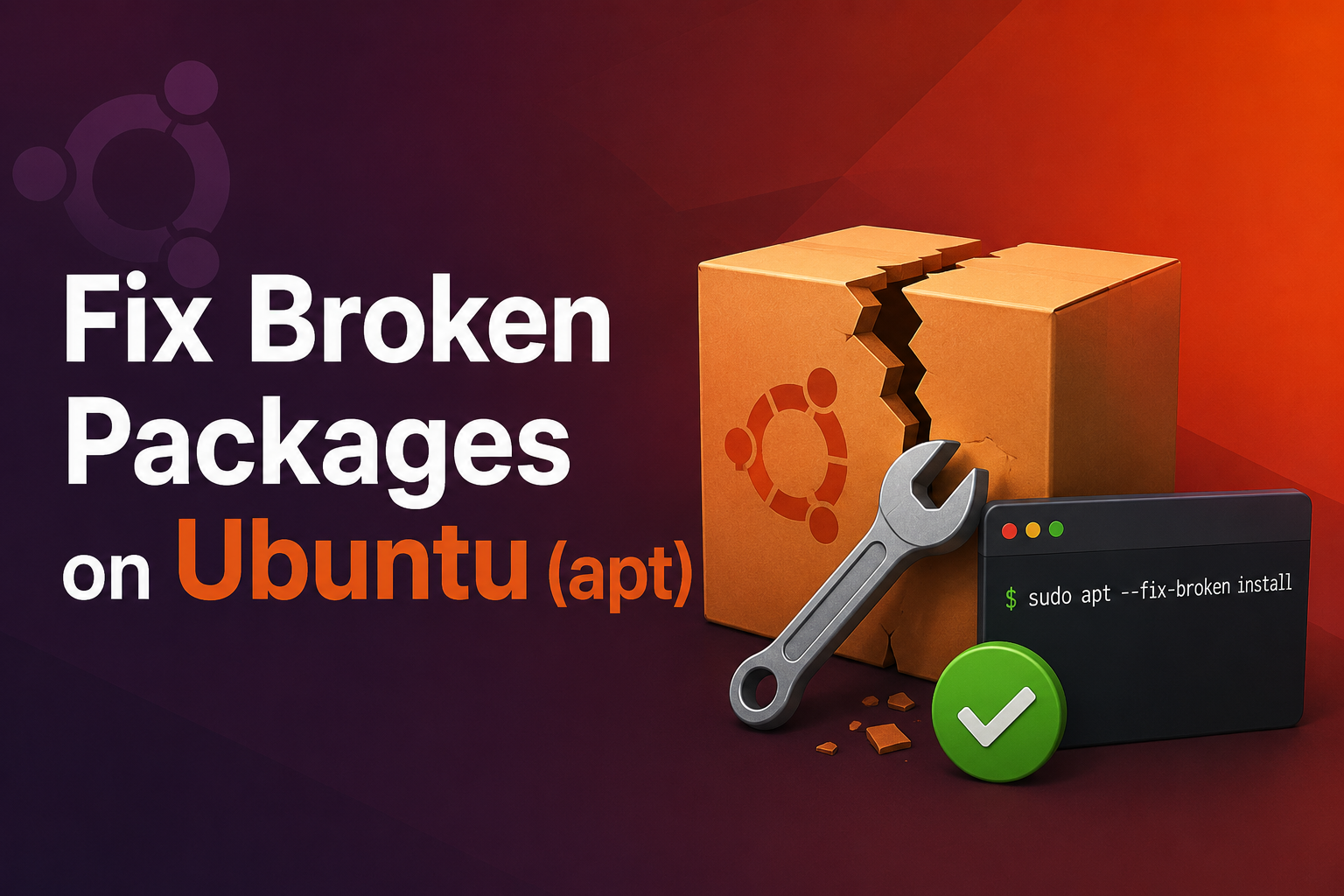
Broken packages on Ubuntu are the tax for mixing PPAs, grabbing .deb files from forums, interrupting apt upgrade mid-download, or letting unattended upgrades pull conflicting library transitions. Symptoms include dpkg configure errors, half-installed packages, apt upgrade refusing to proceed, and services failing after libc upgrades. For homelab hosts running Docker, nginx, and monitoring stacks, a wedged package manager can block security patches—fix it methodically, not with delete-everything panic.
This guide walks through diagnosing apt/dpkg state, safe recovery commands, handling held packages, cleaning stale PPAs, and when to restore from snapshot versus reinstall.
Before you begin
Do not delete /var/lib/dpkg or random files in /var/lib/apt—you will lose package tracking.
Open a root shell option: sudo -i or tty if GUI package tools crash.
Backup critical configs before aggressive fixes:
sudo tar czf ~/etc-backup-$(date +%F).tar.gz /etc
Check disk space—full /var causes mysterious configure failures:
df -h / /var
sudo apt clean
Note recent actions: new PPA, manual dpkg -i, interrupted upgrade, release upgrade attempt.
Initial diagnostics
sudo apt update
sudo apt upgrade
sudo dpkg --configure -a
sudo apt --fix-broken install
Read the first error in output—not the cascade. Google exact strings with "Ubuntu 24.04" for targeted fixes.
List broken packages:
dpkg -l | grep -E '^..r'
apt-cache policy package-name
Check holds:
apt-mark showhold
sudo apt-mark unhold package-name   # if hold causes conflicts
Standard recovery sequence
Run in order, repeating until clean:
sudo dpkg --configure -a
sudo apt --fix-broken install
sudo apt update
sudo apt full-upgrade
sudo apt autoremove --purge
If a specific package blocks everything, inspect:
sudo apt install -f
sudo dpkg -l | grep package
sudo apt reinstall package
When a single package is stuck
Remove but keep configs:
sudo apt remove --purge package
sudo apt autoremove
Force remove (last resort, may break dependents):
sudo dpkg --remove --force-remove-reinstreq package
sudo apt --fix-broken install
Reinstall from archive if version mismatch:
apt-cache madison package
sudo apt install package=version
PPA and third-party .deb cleanup
List PPAs:
ls /etc/apt/sources.list.d/
Remove problematic PPA:
sudo add-apt-repository --remove ppa:user/ppa
sudo rm /etc/apt/sources.list.d/user-ubuntu-ppa-*.list
sudo apt update
For manual .deb installs, prefer sudo apt install ./package.deb over raw dpkg -i to let apt resolve dependencies.
Common failure patterns on homelab Ubuntu
nginx/apache won't start after openssl/libc bump. Reinstall daemon and regenerate configs:
sudo apt install --reinstall nginx
sudo nginx -t
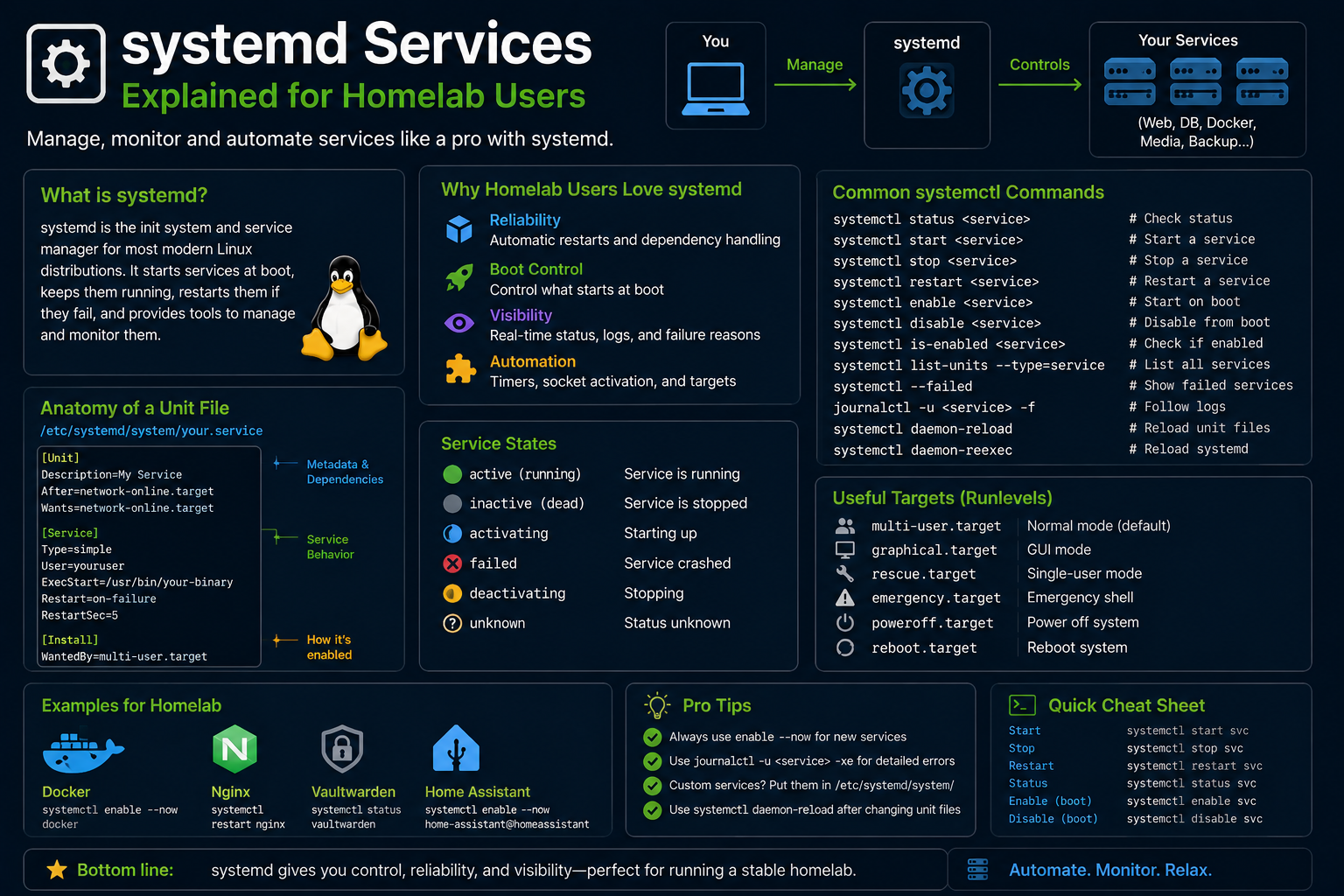
Docker CE vs docker.io conflict. Remove one family completely before installing the other (see Docker install guide).
Kernel headers mismatch with DKMS (NVIDIA). Reinstall linux-headers-$(uname -r) and dkms modules:
sudo apt install --reinstall linux-headers-$(uname -r)
sudo dpkg --configure -a
PostgreSQL/MySQL major version jump failed. Check /var/log/dist-upgrade/ for release upgrade logs; restore from backup if data directory half-migrated.
Release upgrade stuck mid-flight
If do-release-upgrade aborted:
ls /var/log/dist-upgrade/
sudo dpkg --configure -a
sudo apt --fix-broken install
Do not reboot blindly if /var/run/reboot-required shows unresolved libc issues—fix dpkg first.
Recovery from live USB (advanced)
If system won't boot package manager cleanly:
- Boot Ubuntu live session.
- Mount root partition:
sudo mount /dev/nvme0n1p2 /mnt
sudo mount /dev/nvme0n1p1 /mnt/boot/efi
sudo mount --bind /dev /mnt/dev
sudo mount --bind /proc /mnt/proc
sudo mount --bind /sys /mnt/sys
sudo chroot /mnt
- Run recovery sequence inside chroot.
update-grub; exit; reboot.
Prevention habits
- Prefer official repos and Flatpak/Snap over random
.debdownloads. - Limit PPAs; document them in
/root/PPA-NOTES.txtor Ansible. - Run
apt full-upgraderegularly on internet-facing nodes; read kernel restart prompts. - Use Timeshift/btrfs snapshots before dist-upgrade or NVIDIA driver experiments.
- Pin critical production versions sparingly with
apt-mark hold—remember to unhold.
sudo apt install unattended-upgrades
sudo dpkg-reconfigure -plow unattended-upgrades
Worked example: libc6 upgrade conflict
Symptom: dpkg: error processing archive ... trying to overwrite '/usr/share/man/...' from mixed manual installs.
Resolution path:
sudo apt download package-a package-b
sudo dpkg -i --force-overwrite package-a_*.deb   # last resort
sudo apt --fix-broken install
Prefer identifying which third-party repo introduced overlapping files and removing that repo entirely.
Worked example: interrupted release upgrade
If /var/log/dist-upgrade/main.log shows abort mid-transaction:
sudo cp /var/log/dist-upgrade/main.log ~/upgrade-debug.log
sudo dpkg --configure -a
sudo apt --fix-broken install
sudo apt full-upgrade
Do not run do-release-upgrade again until apt upgrade completes cleanly—duplicate attempts compound partial state.
When to restore snapshot vs repair
| Situation | Action |
|---|---|
| dpkg status corrupted | Restore Timeshift/btrfs snapshot if available |
| Single PPA conflict | Remove PPA, fix-broken |
| Database half-upgraded | Restore DB backup; do not force apt |
| Docker repo mismatch | Purge one docker package family, reinstall |
Homelab nodes without snapshots should maintain configuration in git/Ansible so rebuild cost stays low when apt surgery exceeds an hour.
apt pinning and holding packages (advanced)
Temporarily hold kernel when debugging DKMS:
sudo apt-mark hold linux-image-generic linux-headers-generic
# unhold after fix
sudo apt-mark unhold linux-image-generic linux-headers-generic
Pin specific versions in /etc/apt/preferences.d/ sparingly—pins drift and cause future conflicts. Document expiry dates on pins.
Logging upgrade failures for support
sudo apt upgrade 2>&1 | tee ~/apt-upgrade-$(date +%F).log
sudo dpkg --audit
Attach logs when asking forums for help—first error line matters more than final cascade.
Post-recovery verification
After any major apt surgery:
sudo apt update
sudo apt full-upgrade
sudo apt autoremove --purge
sudo reboot
systemctl --failed
docker ps   # if homelab stacks expected
Run application-level health checks—databases may start but need pg_upgrade or manual schema repair after library jumps.
Keep a printed copy of working sources.list and PPA list when traveling—remote SSH repair is easier with accurate repo documentation.
If apt upgrade proposes removing hundreds of packages unexpectedly, abort and inspect /var/log/apt/history.log for accidental meta-package removal before confirming.
Export dpkg --get-selections monthly on critical nodes—restoring package selections is faster than guessing which metapackages disappeared.
Troubleshooting edge cases
"Could not get lock /var/lib/dpkg/lock". Another apt process running—or stale lock after crash:
sudo lsof /var/lib/dpkg/lock-frontend
sudo kill PID   # if truly stuck
sudo rm /var/lib/dpkg/lock-frontend /var/lib/apt/lists/lock
sudo dpkg --configure -a
Hash sum mismatch / mirror errors. Change mirror or sudo apt clean && sudo apt update.
Out of inodes. df -i — clear excessive small files in logs or journal.
Conflicting packages systemd-shim era leftovers. Rare on 24.04; search exact package names in Launchpad bugs.
Key takeaways
- Run
dpkg --configure -aandapt --fix-broken installfirst—they resolve most interrupted upgrades. - Fix the first reported error, not the twentieth dependent failure.
- Remove conflicting PPAs and duplicate Docker packages before chasing ghosts.
- Use live USB chroot when local package manager cannot start but disk is healthy.
- Snapshot before major changes—homelab uptime is cheaper than data archaeology.
FAQ
Will apt --fix-broken delete my data?
It adjusts packages; user data in /home and /var/lib/docker/volumes typically remains—but databases may need service-specific repair after library downgrades (often impossible—restore backup).
Can I force apt to ignore dependencies?
-o Dpkg::Options::="--force-conflicts" and similar flags exist—avoid unless you understand breakage.
When to reinstall OS?
When /var/lib/dpkg/status is corrupted and backups exist—faster than weeks of manual dpkg surgery.
Does Ubuntu Pro help?
Extended security maintenance for packages; not a substitute for fixing broken dpkg state.