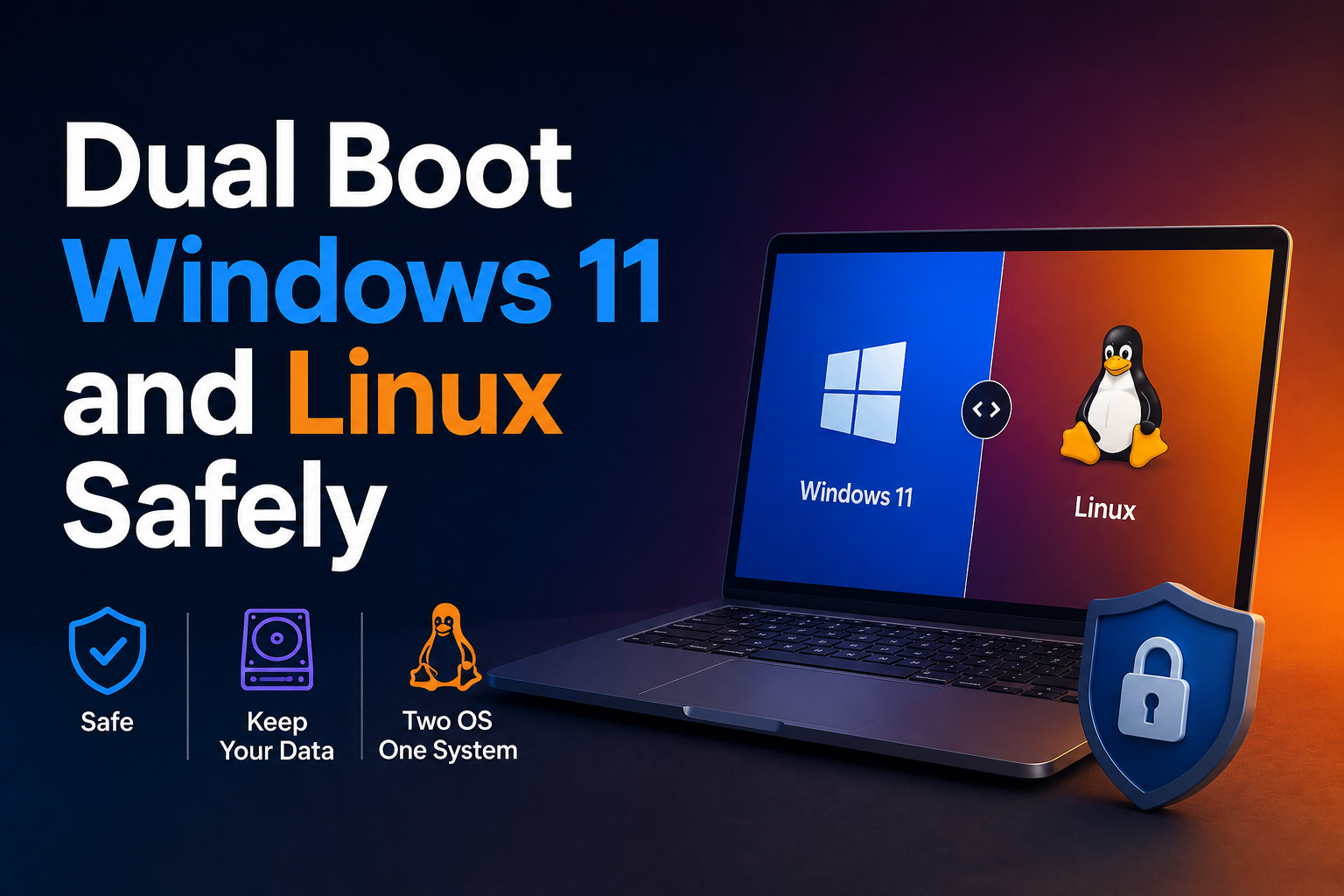
Dual-booting Windows and Linux on one physical machine is the pragmatic compromise for developers who need Linux for homelab parity and Windows for gaming, Office macros, or employer VPN clients. UEFI firmware, GPT partitioning, and BitLocker interactions make 2026 dual-boot less fragile than Legacy BIOS days—but order of operations still matters: shrink Windows from within Windows, install Linux second, and understand how GRUB or systemd-boot discovers Windows Boot Manager.
This guide walks through pre-flight backups, secure firmware settings, partition planning, Ubuntu/Fedora installer choices, post-install boot repair, and time/sync pitfalls—written for homelab builders not afraid of disk management but unwilling to brick a daily PC.
Before you begin
Back up data to external storage or cloud. Imaging tools (Macrium Reflect, Clonezilla) add rollback confidence.
Document BitLocker recovery key if enabled. Partition edits may trigger recovery prompts.
Check disk layout in Windows:
- Disk Management → shrink C: volume to create unallocated space (100 GB minimum for Linux desktop; more for games/containers).
- Disable Fast Startup (Control Panel → Power Options → Choose what power buttons do → uncheck Fast Startup). Fast Startup hibernates Windows and can cause mount corruption if Linux writes NTFS partitions.
Disable hibernation-heavy hybrid sleep if you share NTFS data partitions between OSes—prefer exFOS shared drive or network shares for cross-OS files.
Firmware checklist:
- UEFI mode (not Legacy-only).
- Secure Boot: Ubuntu/Fedora generally support; document if you disable for NVIDIA akmods experiments.
- SATA mode AHCI/NVMe—not Intel RST hiding disks.
Partition strategy
Typical layout after shrink:
| Region | Owner |
|---|---|
| EFI System Partition (ESP) | Shared, ~100–500 MB FAT32 |
| Microsoft reserved / recovery | Windows |
| NTFS C: | Windows |
| Unallocated | Linux installer consumes |
Linux needs:
- Root (
/) ext4 or btrfs—50–100 GB+ - Optional
/homeseparate - swap or swapfile
- Uses existing ESP—mount at
/boot/efiwithout reformatting ESP
Never reformat ESP if Windows still needs it—add Linux bootloader entries alongside \EFI\Microsoft\Boot.
Install Linux second
Boot Linux installer USB. Choose Install alongside Windows if offered and unallocated space is detected—or Something else for manual control.
Manual partitioning example:
/dev/nvme0n1p1FAT32 → mount/boot/efi(do not format if existing ESP)/dev/nvme0n1p3ext4 → mount/- Optional
/dev/nvme0n1p4ext4 →/home - Create swap if desired
Install bootloader to ESP (default). Complete install; reboot removes USB.
Bootloader behavior
GRUB (Ubuntu default) should list Windows Boot Manager. If missing:
sudo apt install os-prober
sudo nano /etc/default/grub
# Ensure GRUB_DISABLE_OS_PROBER=false (Ubuntu 22.04+)
sudo update-grub
Fedora similarly generates grub entries including Windows.
systemd-boot (Arch/manual): create loader entry pointing to \EFI\Microsoft\Boot\bootmgfw.efi.
UEFI firmware boot order can prioritize Linux or Windows—set fallback OS in firmware setup if updates reset order.
Post-install configuration
Time sync: Windows uses local RTC by default; Linux expects UTC.
On Linux:
timedatectl set-local-rtc 0
On Windows (admin CMD):
reg add HKLM\System\CurrentControlSet\Control\TimeZoneInformation /v RealTimeIsUniversal /t REG_DWORD /d 1
NTFS data partition (optional): Mount read-only in Linux if Fast Startup remains enabled, or disable Fast Startup and mount with ntfs-3g:
sudo apt install ntfs-3g
sudo mkdir /mnt/windata
sudo mount -t ntfs-3g /dev/nvme0n1pX /mnt/windata
Add /etc/fstab entries with uid= options for user write access—only if Fast Startup is off.
Updates across OSes: Major Windows updates occasionally run disk repair and may reclaim boot flags—keep Linux live USB handy.
BitLocker and shared data strategies
BitLocker-encrypted Windows volumes must be managed from Windows before partition edits. Suspend protection during shrink operations:
manage-bde -status C:
manage-bde -protectors -disable C:
# Shrink in Disk Management, then re-enable
manage-bde -protectors -enable C:
Linux LUKS and BitLocker use separate keys—document both offline. Avoid read/write sharing of NTFS system partitions across OSes; prefer exFAT data volumes or NAS shares for cross-platform files when Fast Startup is disabled.
Use efibootmgr -v after major firmware or Windows updates if boot order resets unexpectedly.
Choosing installer ISOs for dual-boot
Ubuntu and Fedora installers detect Windows and handle GRUB registration reliably. Pop!_OS uses systemd-boot on some configurations—verify Windows entry after install. Arch manual partitioning demands ESP awareness—never format existing ESP.
When Windows 11 Secure Boot and TPM are required features, keep firmware TPM enabled—Linux installers coexist with TPM 2.0; BitLocker may use TPM sealing separately from Linux LUKS.
Allocate swap thoughtfully: hibernation in Linux requires swap roughly equal to RAM if you plan to hibernate alongside Windows fast startup disabled.
Recovery media checklist
Maintain on separate USB sticks:
- Windows recovery environment (official Media Creation Tool)
- Linux live ISO matching installed distro
- GParted live for emergency partition inspection
Label sticks physically—panic boot situations are not time for ISO guessing.
Performance expectations per OS
Windows often retains edge cases for brand-new game releases day-zero; Linux catches up within weeks via Proton updates for many titles—not all. Dual-boot lets you play day-zero on Windows while tracking ProtonDB for Linux migration later.
Linux desktop multitasking alongside containers consumes RAM—allocate enough for both gaming and background homelab stacks or close Docker when gaming competitively.
Keep motherboard firmware updated from both OSes when vendors ship dual BIOS+ME bundles—rare boot issues trace to stale UEFI.
Document partition UUIDs in /etc/fstab on Linux and avoid hardcoding /dev/sdX paths—device names shift after drive additions in multi-disk workstations.
When corporate MDM manages Windows, dual-boot may violate policy—confirm employer rules before repartitioning work laptops even if technically feasible.
Test hibernation and sleep in both OSes after dual-boot setup—firmware ACPI bugs show up only when switching OSes weekly.
Troubleshooting
Linux install cannot see unallocated space. Shrink from Windows; defragment/optimize (SSD trim aware) first; disable BitLocker temporarily.
GRUB rescue prompt. Boot live USB, chroot, reinstall grub:
sudo mount /dev/sdXY /mnt
sudo mount /dev/sdX1 /mnt/boot/efi
sudo chroot /mnt
grub-install
update-grub
Windows Boot Manager missing. Windows Recovery → Startup Repair; or bcdboot C:\Windows from recovery environment.
BitLocker recovery after partition changes. Normal—enter recovery key; suspend BitLocker before future partition edits.
Secure Boot blocks custom kernels/modules. Use signed shim paths (Ubuntu/Fedora) or disable Secure Boot in firmware.
Linux boots; Windows bluescreens on disk access. Fast Startup left NTFS dirty—boot Windows cleanly, disable Fast Startup.
Duplicate ESP entries in firmware. Clean \EFI folders carefully from live environment—do not delete Microsoft folder.
Key takeaways
- Shrink Windows and create unallocated space before Linux install—never guess partition numbers.
- Install Linux second so GRUB/systemd-boot registers both OSes on shared ESP.
- Disable Fast Startup and align RTC to UTC to prevent time skew and NTFS corruption.
- Keep recovery media for both OSes—Windows updates and grub updates occasionally conflict.
- Dual-boot is a workflow split, not failure—use each OS for workloads it handles best.
FAQ
Can I dual-boot with encryption?
Yes—LUKS for Linux, BitLocker for Windows; manage separate passphrases and recovery keys.
How much space for Linux?
100 GB comfortable minimum for desktop dev; 50 GB tight if /home is separate on large drive.
Will Linux replace Windows bootloader?
Linux installs add boot entries; Windows remains bootable via GRUB menu or firmware boot order.
Btrfs dual-boot snapshots?
Advanced but excellent rollback—requires careful ESP and Timeshift/snapper planning.
Does Windows Update remove GRUB?
Rare on UEFI with proper ESP entries; keep live USB ready and run update-grub if Windows becomes the only boot option.