The terminal is the control plane for Linux homelabs, cloud instances, and developer workstations. GUIs cover day-to-day desktop tasks, but SSH sessions, Docker debugging, log inspection, and automation all route through a shell. Learning terminal basics pays compounding returns: scripts you write once work identically on a laptop, a Raspberry Pi, and a remote VPS.
This guide covers navigation, file operations, permissions awareness, pipes and redirection, process management, and the habits that prevent "rm -rf disasters"—aimed at developers and homelab builders who are comfortable on Windows or macOS but new to bash.
Before you begin
Know your shell. Most distros default to bash; Ubuntu also ships dash for scripts. Check with:
echo $SHELL
bash --version
Open a terminal: Ctrl+Alt+T on many desktops; or search "Terminal" in the app launcher.
Mindset: The shell is stateful—current directory, environment variables, and history persist in a session. Remote SSH sessions are the same interface without a mouse safety net.
Safety rule: Never run commands you do not understand from random forums. Especially anything with sudo, dd, chmod -R 777, or piping curl to bash.
Navigation and filesystem layout
Linux mounts everything under a single tree starting at /.
| Path | Purpose |
|---|---|
/home/you |
Your files |
/etc |
System configuration |
/var/log |
Logs |
/tmp |
Temporary files |
/usr/bin |
User commands |
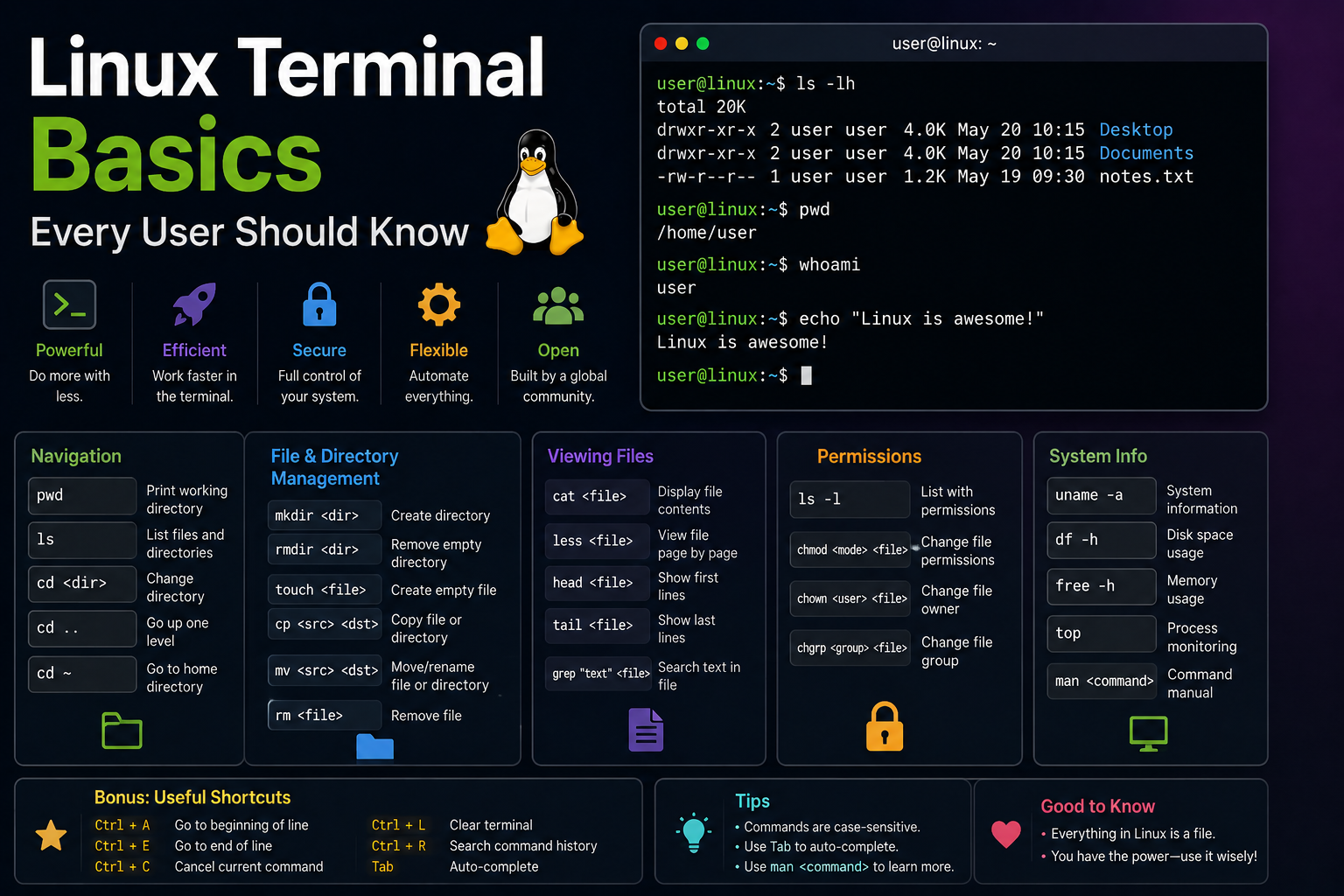
Core navigation commands:
pwd                 # print working directory
ls -lah             # list with sizes, permissions, hidden files
cd ~/projects       # change directory; ~ means home
cd ..               # parent directory
Use tab completion for paths and commands—fewer typos.
Creating, copying, moving, and deleting
mkdir -p ~/homelab/docker/traefik
touch readme.md
cp file.txt backup/file.txt
mv oldname.txt newname.txt
rm file.txt           # delete file — no Recycle Bin
rm -r directory/      # recursive delete — double-check path first
Prefer trash-cli or file manager deletes until you trust your paths. For bulk operations, test with echo or --dry-run flags when available.
View file contents:
cat /etc/os-release
less /var/log/syslog    # q to quit; / to search
head -n 20 file.log
tail -f /var/log/nginx/access.log   # follow live logs
Searching and discovery
find ~ -name "*.yaml" -mtime -7    # yaml files modified in 7 days
grep -r "password" ~/project --exclude-dir=node_modules
which docker
type cd    # builtin vs external command
man ls     # manual pages; q to quit
ripgrep (rg) is faster for code search—install via package manager:
sudo apt install ripgrep    # Ubuntu/Debian
sudo dnf install ripgrep    # Fedora
Pipes, redirection, and command chaining
Combine simple tools:
docker ps | grep nginx
journalctl -u ssh --since today | tail -50
ls -l > listing.txt           # stdout to file (overwrite)
ls -l >> listing.txt          # append
command2>&1 | tee output.log   # stderr merged to stdout, tee to file
cmd1 && cmd2                  # run cmd2 only if cmd1 succeeds
cmd1 ; cmd2                   # always run cmd2
Understanding stdin/stdout/stderr is essential for debugging install scripts and CI logs.
Permissions (preview)
Every file has an owner, group, and mode bits. You will deep-dive in dedicated chmod guides; for now:
ls -l script.sh
# -rw-r--r-- 1 user user ...  → owner read/write; group/others read
chmod +x script.sh             # make executable
Do not chmod 777 directories on servers—use proper ownership and groups.
Environment variables and sudo
echo $PATH
export MY_VAR=hello
env | sort
sudo runs commands as root—required for system packages and ports below 1024:
sudo apt update
sudo systemctl restart nginx
Configure sudo with your user password on desktop distros. On servers, prefer SSH keys and limited sudoers rules.
Process management
ps aux | grep python
top                  # or htop if installed
kill PID
kill -9 PID          # force; last resort
pgrep -af nginx
Background jobs:
long_command &
jobs
fg %1
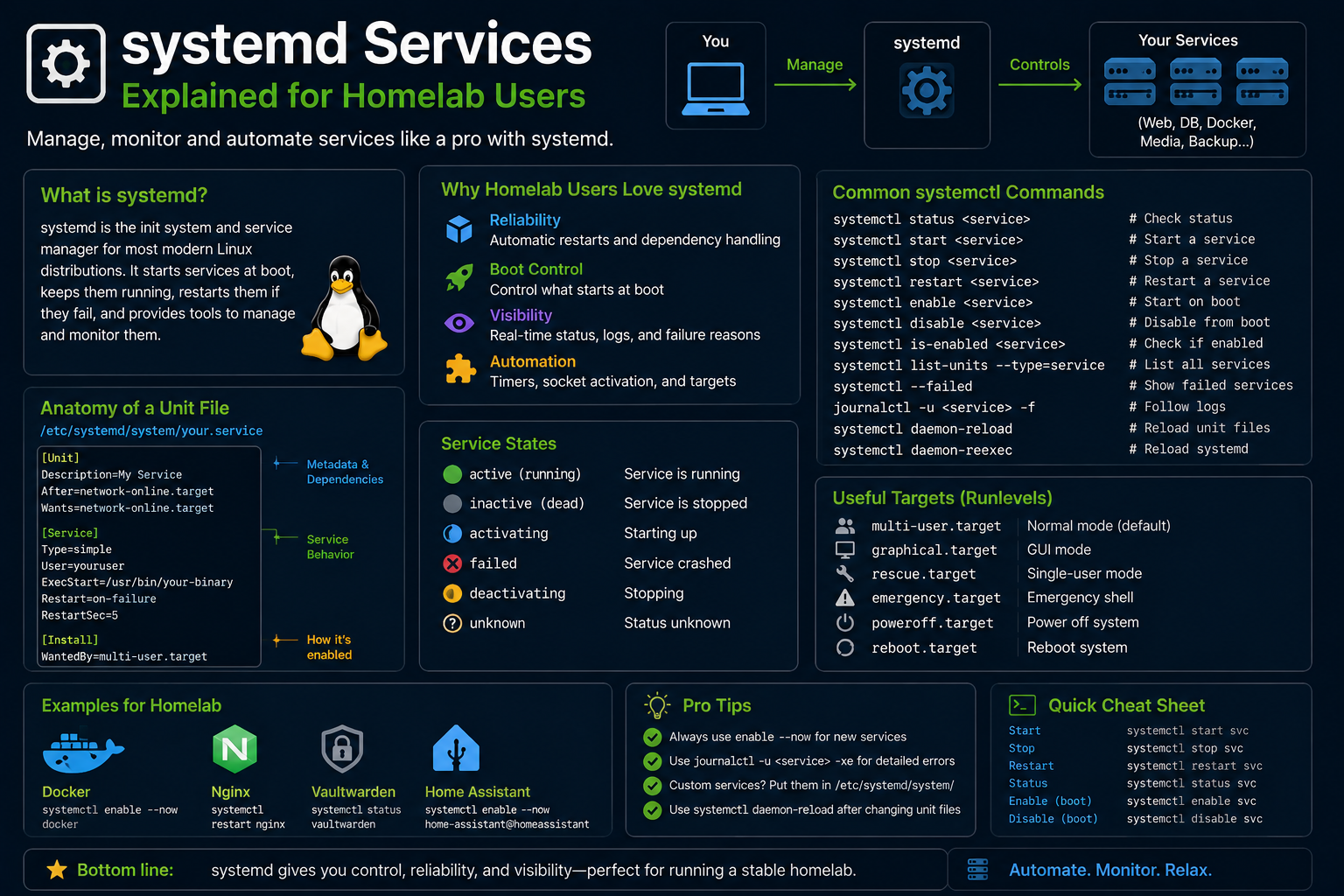
Systemd manages services on modern distros:
systemctl status docker
systemctl list-units --type=service --state=running
SSH: the homelab remote shell
From your workstation to a server:
ssh user@192.168.1.50
ssh -i ~/.ssh/id_ed25519 user@host
Copy files with scp or rsync:
rsync -avz ./config/ user@host:/etc/myapp/
Key-based auth eliminates password typing and enables automation.
Productivity habits
- Use a multiplexer (
tmux) for persistent sessions on remote hosts. - Maintain dotfiles in git for
.bashrc, aliases, and tool configs. - Create aliases carefully:
# in ~/.bashrc
alias ll='ls -lah'
alias dps='docker ps --format "table {{.Names}}\t{{.Status}}"'
- History search: Ctrl+R reverse-searches commands.
- Editor choice: Learn
nanobasics at minimum;vimormicrofor longer edits.
Package management from the terminal
Desktop users can install GUI apps, but homelab operators live in package managers:
Debian/Ubuntu:
sudo apt update
sudo apt install htop
apt search nginx
apt show docker-ce
sudo apt remove --purge oldpackage
Fedora:
sudo dnf install htop
dnf search nginx
sudo dnf remove oldpackage
Inspect installed files:
dpkg -L package-name    # Debian/Ubuntu
rpm -ql package-name    # Fedora
Flatpak CLI complements distro packages:
flatpak search appname
flatpak install flathub org.mozilla.firefox
flatpak update
Understanding apt/dnf error messages prevents panic when dependencies conflict—read the proposed changes before confirming.
Networking basics for homelab debugging
ip addr show
ip route
ping -c 4 1.1.1.1
ping -c 4 google.com
ss -tlnp
curl -I https://example.com
dig homelab.local
nmcli dev status    # NetworkManager
DNS failures present as "network works but names fail"—check /etc/resolv.conf and systemd-resolved:
resolvectl status
When Docker enters the picture, remember bridge networks and published ports—ss -tlnp shows what listens on the host.
File archiving and compression
tar czf backup-$(date +%F).tar.gz ~/project
tar xzf backup.tar.gz
unzip archive.zip
zip -r archive.zip folder/
Homelab backups often combine tar, restic, or rsync over SSH—terminal fluency makes cron and systemd timer jobs maintainable.
Working with text and JSON
wc -l access.log
sort access.log | uniq -c | sort -nr | head
cut -d',' -f1 data.csv
jq '.items[] | .name' config.json
sed -n '100,120p' bigfile.log
jq is indispensable for Kubernetes and API debugging—install early.
Troubleshooting
"Permission denied" on scripts. Add execute bit or run bash script.sh.
"Command not found" after install. PATH may not include install location; re-login or check /usr/local/bin.
Copy-paste adds wrong characters. Bracketed paste mode issues in some terminals—paste into a text editor first.
Accidental sudo command. If you started a destructive sudo operation, Ctrl+C immediately; restore from backups if needed.
Locale/unicode glitches in SSH. Ensure LANG=en_US.UTF-8 on client and server.
Key takeaways
- Master
ls,cd,cp,mv,rm,grep, pipes, and redirection—they appear in every tutorial and log-debugging session. - Treat
sudoand recursive deletes with respect; verify paths character by character. systemctlandjournalctlbridge desktop users into homelab service management.- SSH + rsync + tmux is the remote homelab trinity—learn early.
- Manual pages (
man) and--helpbeat memorization; build the habit of reading flags.
FAQ
bash vs zsh vs fish?
bash is the default documentation language; extras are optional once basics are solid.
Do I need to memorize every flag?
No. Remember concepts; look up flags. Muscle memory comes from repetition.
Is the terminal required daily on modern Linux?
For desktop-only use, less so. For developers and homelab operators, yes—regularly.