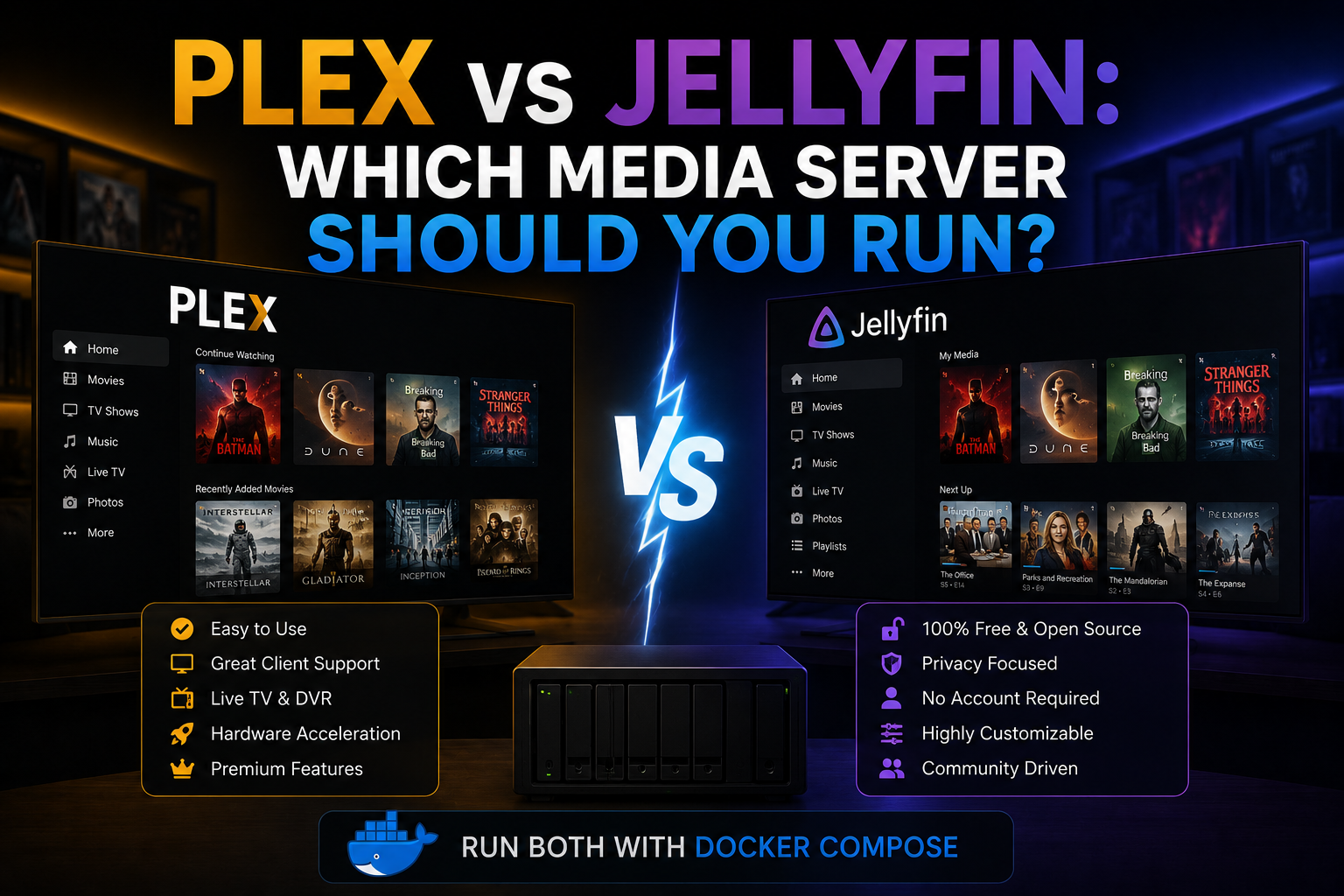
Jellyfin is the open-source media server most homelabs adopt first: no vendor lock-in, no paid remote-play tax, and a feature set that rivals Plex for local libraries, live TV, and client apps on every platform. Running it in Docker keeps upgrades clean, isolates dependencies from the host, and makes backups a matter of snapshotting volumes. This guide walks through a production-minded Docker Compose stack with hardware transcoding, reverse-proxy integration, security hardening, and a backup plan you will actually follow.
Prerequisites
Before you deploy, confirm the basics on your host. You need Docker Engine 24+ and Docker Compose v2 (docker compose, not the legacy docker-compose binary). Allocate a fast disk for the Jellyfin configuration database and metadata; spinning rust is fine for read-mostly media, but SSD for /config improves library scans and UI responsiveness. Plan a stable path for media—NAS mount, bind mount, or local RAID—and ensure the container user can read it. For hardware transcoding on Intel or AMD GPUs, the host needs /dev/dri with the correct render group membership; for NVIDIA, install the NVIDIA Container Toolkit and use the runtime in Compose. Finally, decide how users will reach the server: LAN-only on port 8096, or HTTPS via a reverse proxy with a real hostname. Remote access without TLS is not acceptable on the public internet.
Architecture overview
A minimal Jellyfin deployment is one service and two volume mounts: configuration and read-only media. In homelab practice you add a dedicated bridge network for proxy compatibility, optional GPU device passthrough, health checks, and resource limits so a runaway transcode does not starve the host. Jellyfin stores users, watch state, plugins, and artwork in /config; never treat that directory as disposable. Media libraries point at /media (or multiple mounts) configured inside the web UI after first boot.
Docker Compose stack
Create a project directory, for example ~/docker/jellyfin, and add docker-compose.yml:
services:
  jellyfin:
    image: jellyfin/jellyfin:latest
    container_name: jellyfin
    restart: unless-stopped
    networks:
      - proxy
    environment:
      - TZ=America/New_York
      - JELLYFIN_PublishedServerUrl=https://jellyfin.example.com
    volumes:
      - ./config:/config
      - /mnt/media:/media:ro
    devices:
      - /dev/dri:/dev/dri
    group_add:
      - "44"
      - "993"
    ports:
      - "8096:8096"
    healthcheck:
      test: ["CMD", "curl", "-f", "http://localhost:8096/health"]
      interval: 30s
      timeout: 10s
      retries: 3
      start_period: 60s

networks:
  proxy:
    external: true
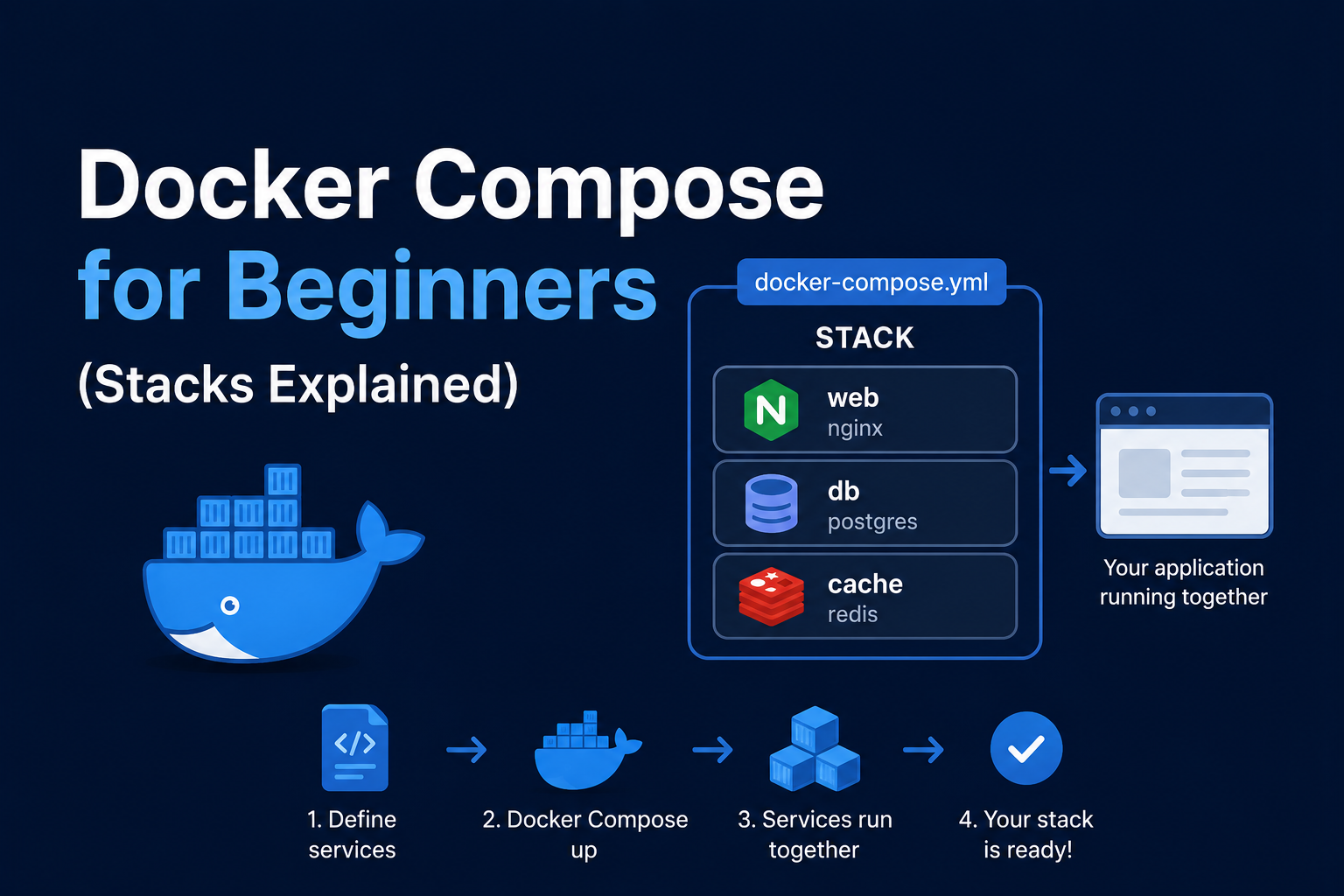
Replace group_add IDs with your host’s video and render group IDs from getent group video and getent group render. Remove devices and group_add if you will transcode in software only. Pin the image tag to a specific digest or version in production rather than latest, so upgrades are deliberate. Bring the stack up with docker compose up -d, then open http://<host>:8096 for the setup wizard.
First-run configuration
Create the administrator account during the wizard, then add libraries for Movies, TV, Music, or mixed folders. Enable “real time monitoring” only if your media path supports inotify across mounts; some NFS configurations require periodic scans instead. Under Dashboard → Playback → Transcoding, pick your hardware acceleration method: Video Acceleration API (VAAPI) for Intel/AMD, NVENC for NVIDIA, or leave disabled for direct play only. Test with a client that forces transcoding—an old phone on a high-bitrate remux—and watch docker logs -f jellyfin for encoder errors. Install only plugins you need; each plugin expands the attack surface and upgrade risk.
Reverse proxy and HTTPS
Do not port-forward plain HTTP to the world. Terminate TLS on Nginx, Traefik, or Caddy and forward to Jellyfin on the internal network. Jellyfin needs correct forwarded headers to generate URLs and to satisfy security checks:
location / {
  proxy_pass http://jellyfin:8096;
  proxy_set_header Host $host;
  proxy_set_header X-Real-IP $remote_addr;
  proxy_set_header X-Forwarded-For $proxy_add_x_forwarded_for;
  proxy_set_header X-Forwarded-Proto $scheme;
}
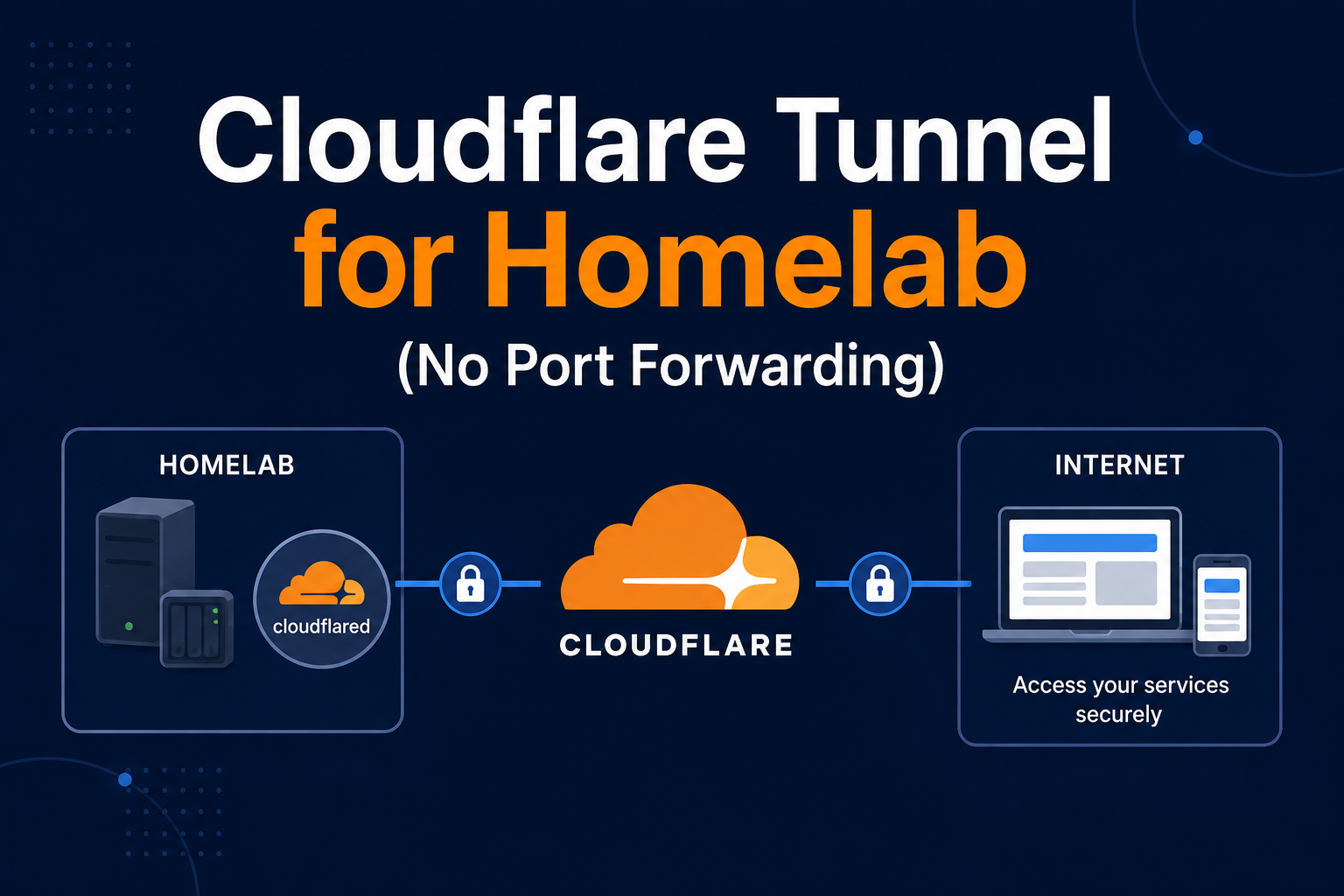
Set JELLYFIN_PublishedServerUrl to your public HTTPS URL so clients and webhooks resolve correctly. If you use a subpath instead of a subdomain, follow Jellyfin’s documented base URL settings. For remote streaming outside your LAN, prefer Tailscale, WireGuard, or Cloudflare Tunnel rather than exposing the service broadly.
Library organization and naming
Homelab media libraries stay maintainable when folder structure matches what metadata providers expect: Movies/Title (Year)/Title (Year).mkv and TV/Show Name/Season 01/Show Name - S01E01.mkv. Jellyfin’s scanners tolerate variation, but consistent naming reduces wrong matches and manual identification work. Keep separate root folders per library type rather than one mixed dump—movies and TV in one library confuse episode detection. For music, use artist/album hierarchy. If you store ISO or VIDEO_TS structures, understand Jellyfin may not treat them like single-file features. Document where 4K HDR and 1080p SDR versions live; duplicate versions in one folder require clear filenames or merged versions in the UI. When media lives on NFS or SMB, mount with noatime where appropriate and verify the Docker user can traverse symlinks—broken symlinks cause endless “missing file” noise in logs.
Live TV and optional DVR
If you attach a USB tuner or use M3U/XMLTV sources, Jellyfin can schedule recordings and present a live guide. Tuner access in Docker often requires device passthrough similar to GPU (/dev/dvb0 or vendor paths) or running tuners on another host and ingesting streams over the network. CPU load spikes during concurrent recordings plus transcodes—size the host accordingly. IPTV sources vary in legality and stability; homelab operators should use sources they are entitled to and expect occasional stream breakage. Backup channel mappings and DVR series rules—they live in config alongside other metadata.
Upgrades, resource limits, and monitoring
Pin image: to a release tag when stability matters (jellyfin/jellyfin:10.9.0). Upgrade with docker compose pull, docker compose up -d, and a quick smoke test on direct play and one transcode. Add Compose resource hints if a runaway transcode starves other containers:
deploy:
  resources:
    limits:
      cpus: "4"
      memory: 4G
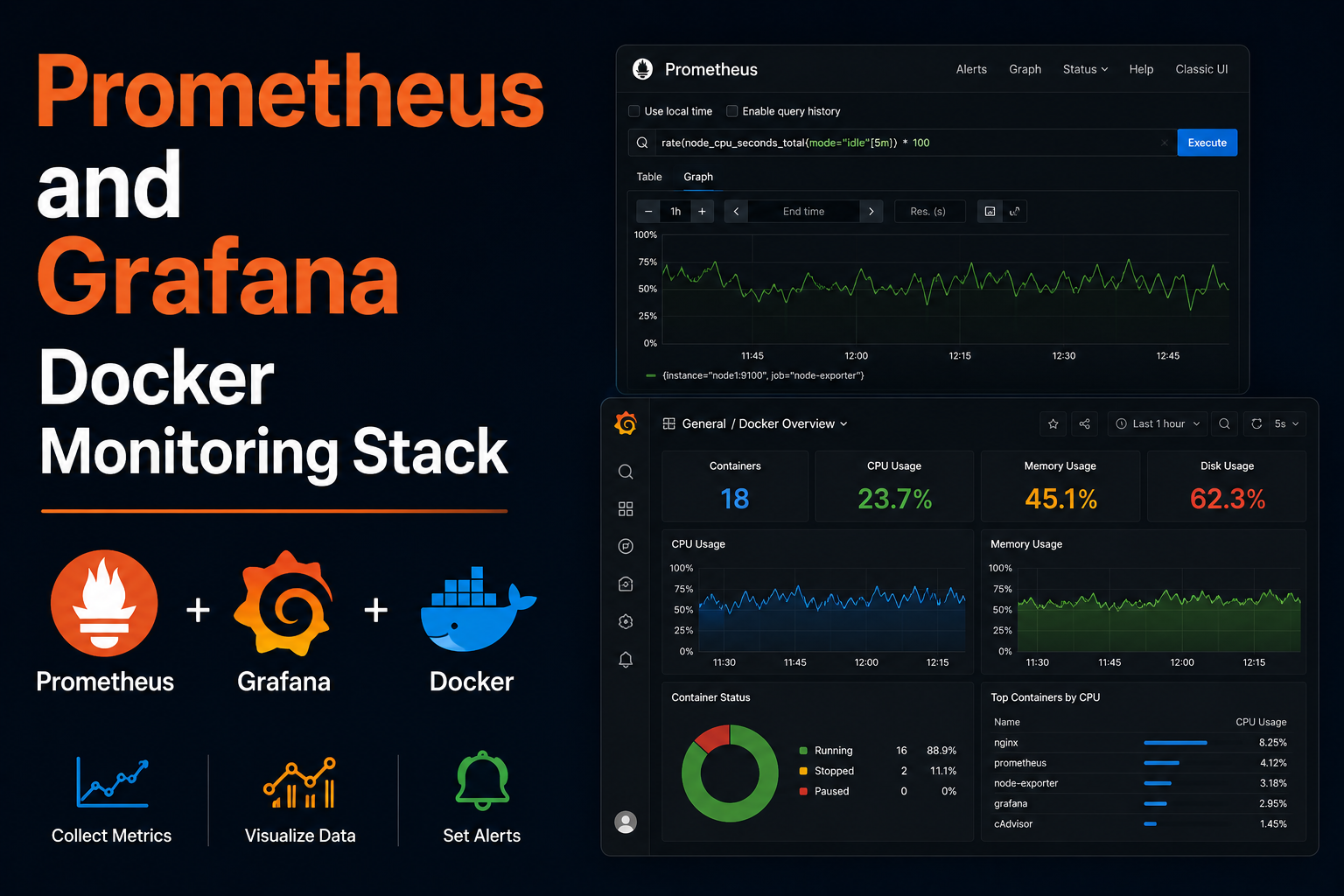
Prometheus node-exporter on the host plus Jellyfin’s built-in metrics (or log scraping) helps you notice disk-full on config before scans fail. Uptime Kuma HTTP checks against /health catch proxy misconfiguration early.
Security notes
Treat Jellyfin like any internet-facing application even if you only “sometimes” open it remotely. Use strong admin credentials and separate local users per household member. Keep the server and image updated; Jellyfin receives security fixes like any other app. Restrict container capabilities— the official image already drops many privileges; avoid running as root on the host. Place the service on an internal Docker network and publish only through the proxy. Block or rate-limit failed logins at the proxy if you expose it publicly. Do not mount media read-write unless you have a specific maintenance workflow.
Backup strategy
Your media is likely backed up separately (or re-rippable); the critical state is ./config. Stop the container for consistent file-level snapshots, or use volume-aware backup tools:
docker compose stop jellyfin
restic backup ./config --tag jellyfin
docker compose start jellyfin
Export Jellyfin’s scheduled tasks and note plugin versions. Document library paths and custom transcoding options. Test a restore quarterly: restore config to a fresh container, start Jellyfin, and verify watch history and credentials. Losing config without a backup means rebuilding libraries and user progress from scratch.
Troubleshooting
Transcoding fails immediately: verify GPU devices, group membership, and that the Intel i965/iHD or Mesa drivers exist on the host. Clients show “Server unavailable” behind a proxy: check X-Forwarded-Proto, PublishedServerUrl, and websocket support on the proxy. Scanning never finishes: permissions on media mounts, path depth, and symlink loops are common causes; run a manual library scan with debug logging enabled. High CPU during idle: scheduled tasks, plugin bugs, or a client generating trickplay images; inspect Dashboard → Scheduled Tasks. HDR tone-mapping looks wrong: often a client limitation; test with Jellyfin Media Player or another direct-play-capable app. NFS stale file handles: remount NAS or restart container after NAS reboot. Android TV stutter: disable client-side transcoding if server GPU handles it.
Key takeaways
Jellyfin in Docker is a dependable homelab media hub when you persist /config, mount media read-only, and plan HTTPS from day one. Hardware transcoding is worth the one-time GPU setup for mixed client ecosystems. Pair the stack with a reverse proxy, automated backups of configuration, and conservative plugin use. Pin images, test restores, and prefer VPN or tunnel access over raw port forwarding for a service that holds your household’s viewing history and credentials.